Expanded application guide
This is a detailed guide for project applications in on UCloud platform
Projects (Applying for project resources)
Overview
If you need additional resources on UCloud (for example GPU access, larger CPU quotas, or sensitive data support), you can apply for a project directly in the UCloud platform.
Important change
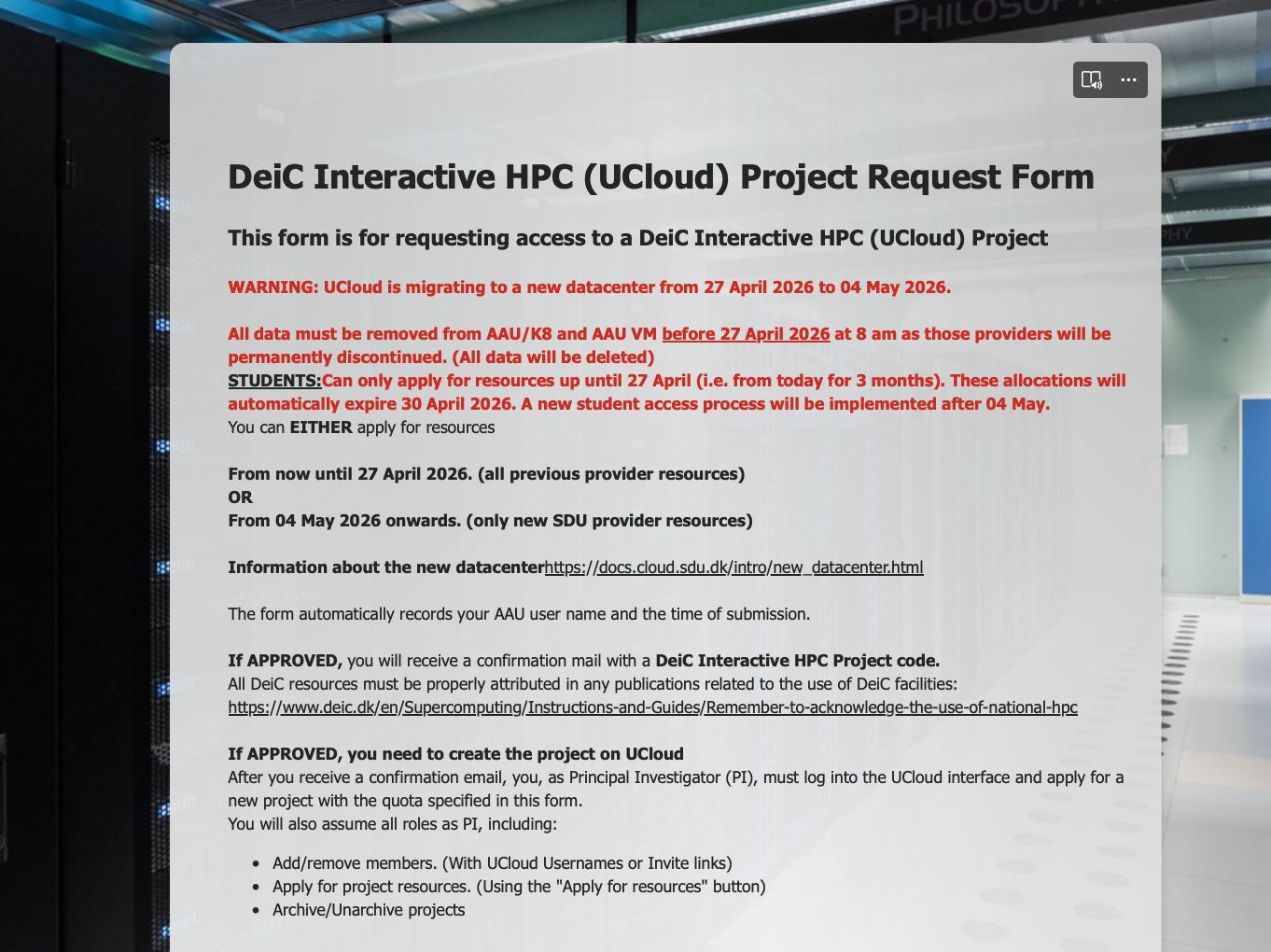
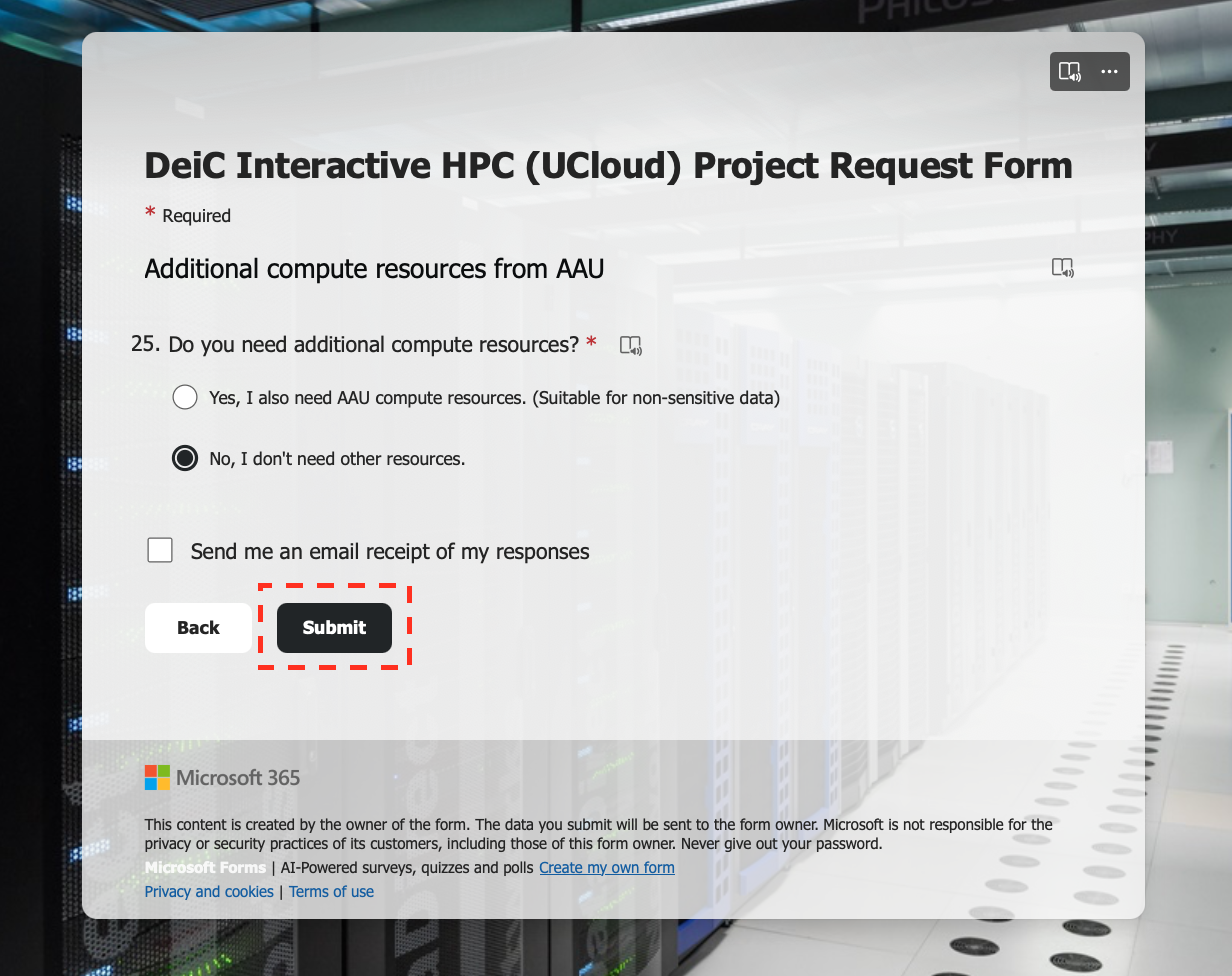
The previous requirement to submit a separate application via Microsoft Forms has been removed. All project and resource requests are now handled directly within UCloud.
At the same time, the UCloud platform has been simplified:
- All compute resources are provided via one provider (SDU)
- Users choose between one CPU product and one GPU product
Before you apply
Before requesting a project or additional resources, make sure that you:
- Understand the data classification level of your data
- Have reviewed the platform limitations and Terms & conditions
- Have completed any required GDPR registrations if your project involves sensitive data (classification level 2 or higher)
GDPR registration of projects
- At AAU, if your project includes any data with classifications levels 2 or higher, you are required to have your research registered for the inclusion of GDPR sensitive data with the Department of Grants and Contracts. Once registered you will be informed of the WorkZone case number that is allocated to your case.
- We require the WorkZone case number.
- Students are excluded from this registration process.
How to apply for a project or additional resources
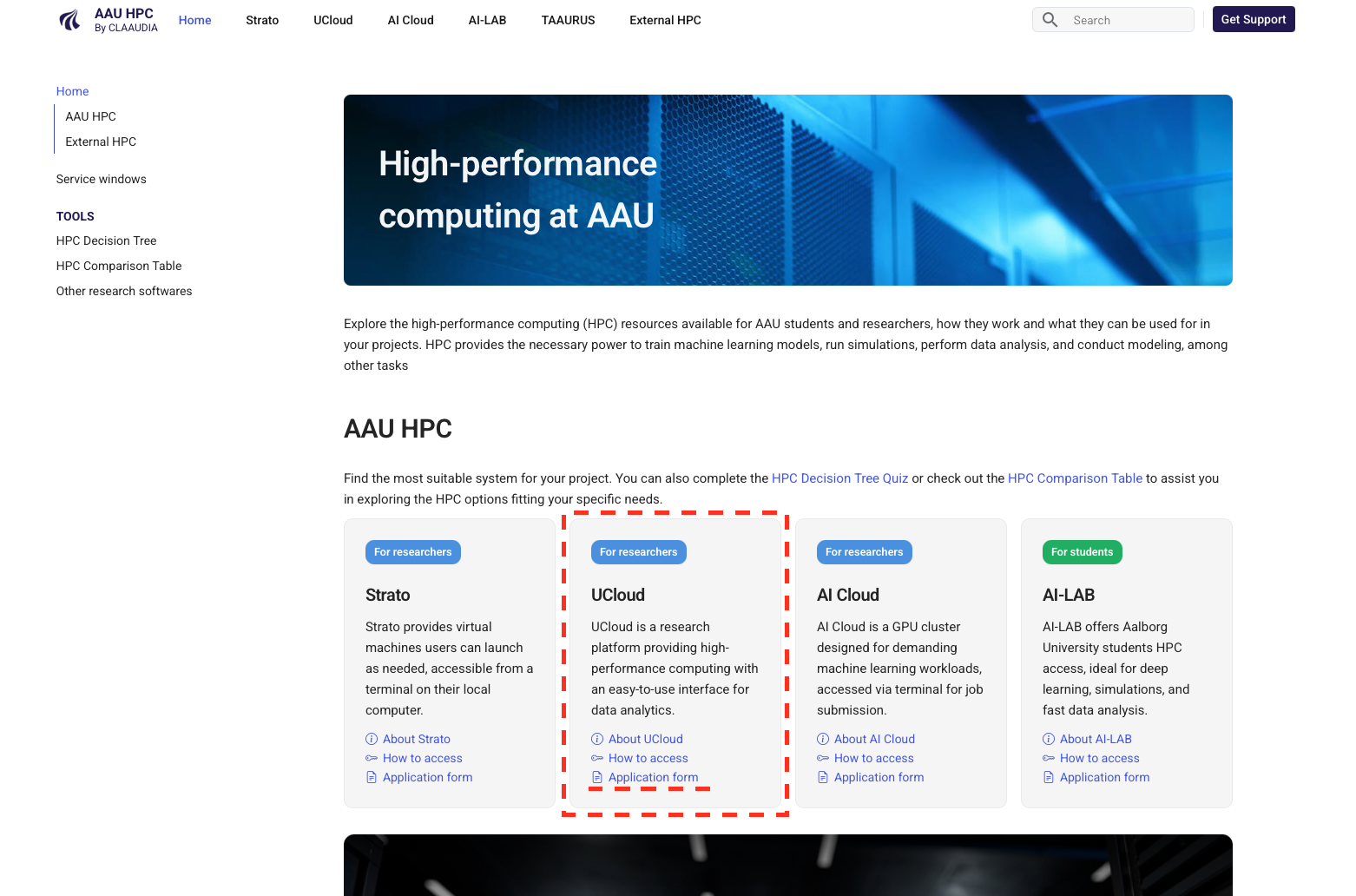
Step 1: Log in to UCloud
Log in to UCloud using your institutional (WAYF) credentials.
All AAU users automatically have access to UCloud and can work in their personal workspace with a basic starting quota.
Step 2: Create or open your project
In the UCloud interface:
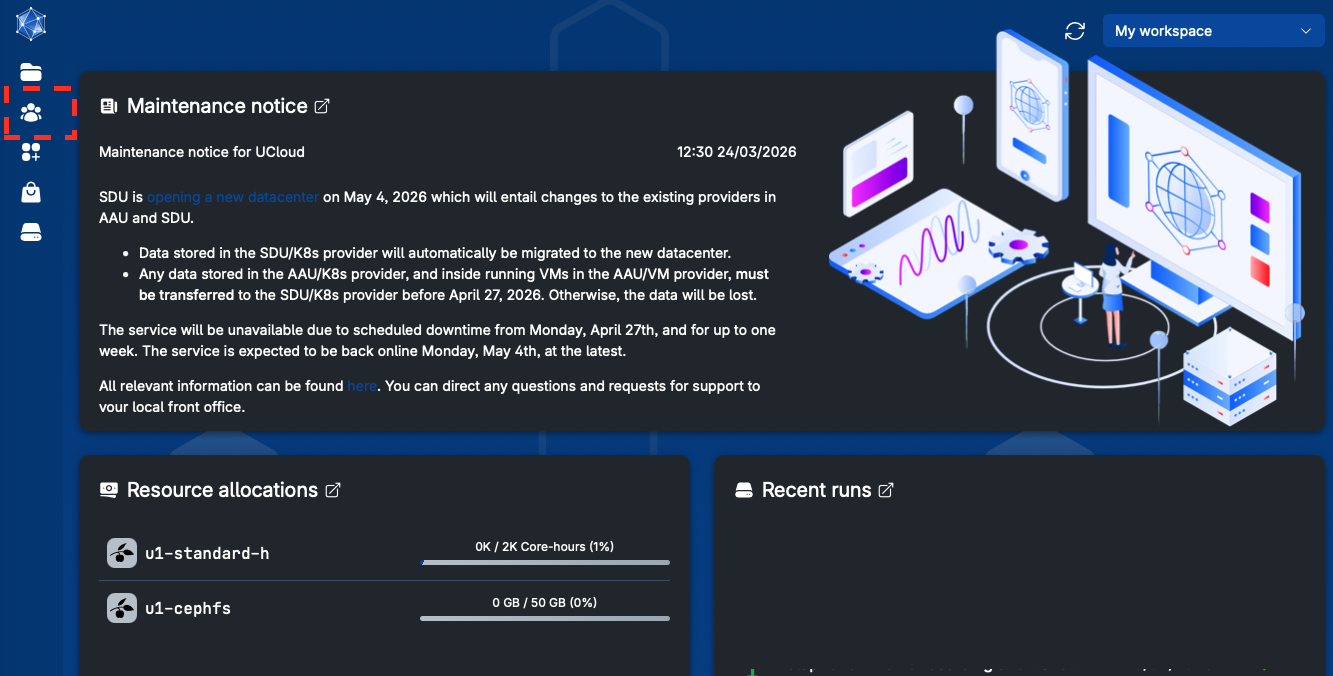
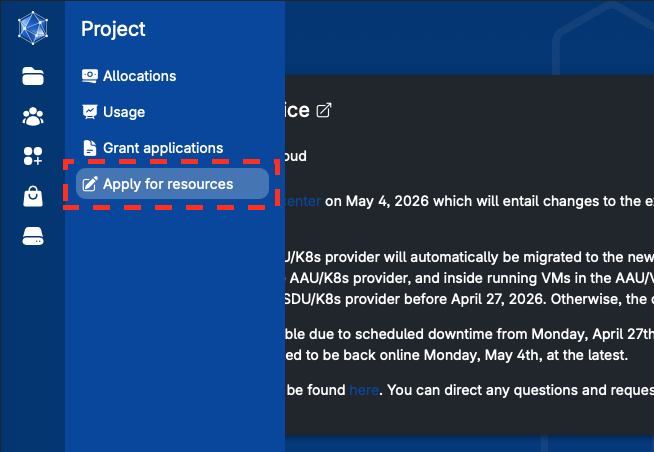
- Open Projects in the left-hand menu
- Click Apply for resources
- Either:
- Create a new project, or
- Open this link from within an existing project workspace if you want to add resources to an existing project
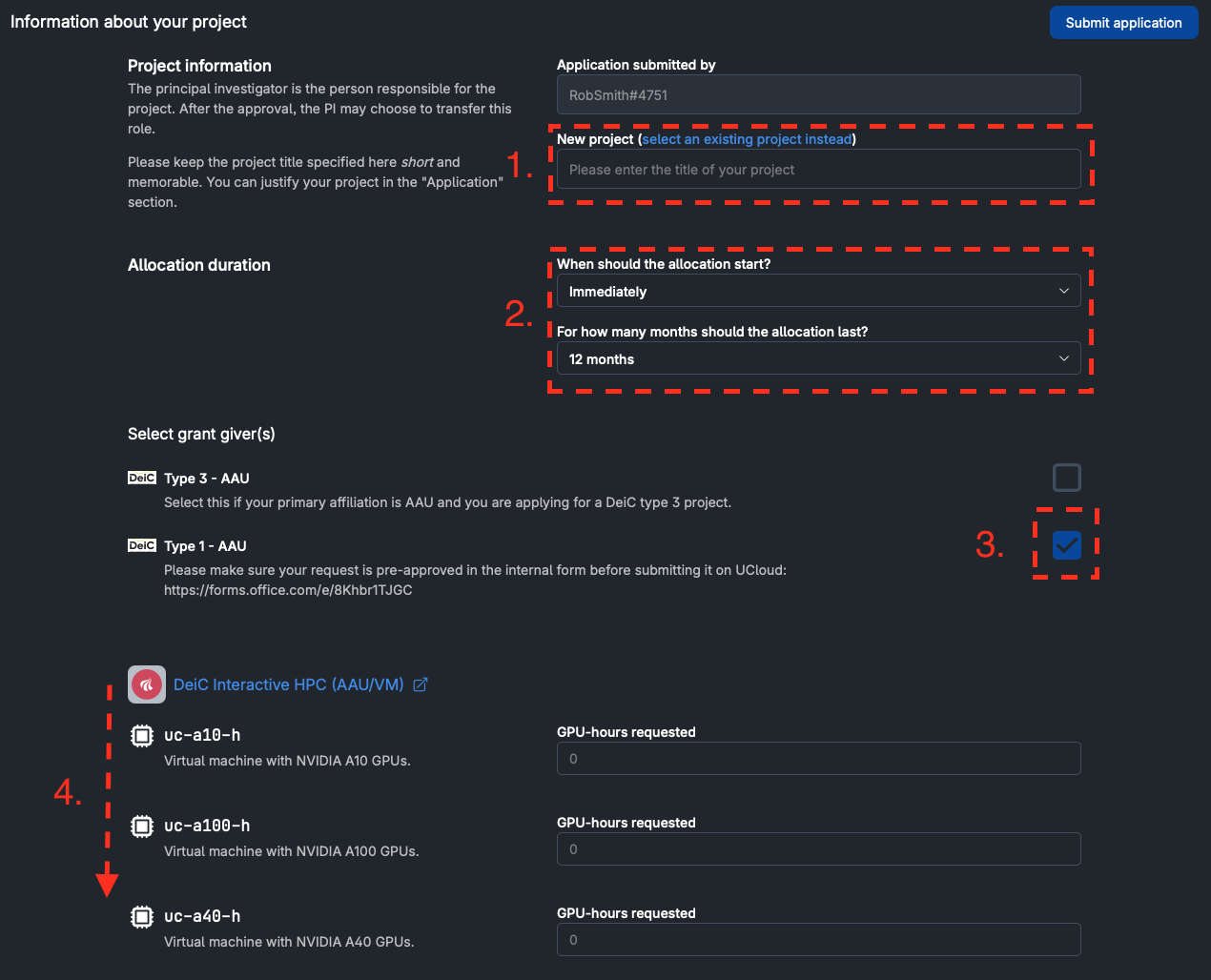
Step 3: Provide project details for title and time-frame
- Provide a title for your UCloud project. Preferably something unique that reflects the work you plan to do. For example, "biothermal_image_training_fall_2026".
- Applications for resource allocations start from the first day of the month specified in the start date. Unless it is necessary, allocations should not exceed the end of the current calendar year.
- In the "Select grant giver(s)" section, choose the appropriate option:
- Researchers (including Ph.d students): Select "Type 1 - AAU".
- Students and educators: Select one of the AAU Education projects, depending on your faculty:
- Faculty of ENG – AAU Education
- Faculty of TECH – AAU Education
- Faculty of SSH – AAU Education
- Faculty of SUND – AAU Education
Please ensure you choose the correct category, as different terms and available resources apply.
First of the month start for all allocations
For example, if you apply for your project to start from 15 October 2026, then all approved allocations will start from 01 October 2026 and run for the time period specified.
Step 4: Request resources in UCloud
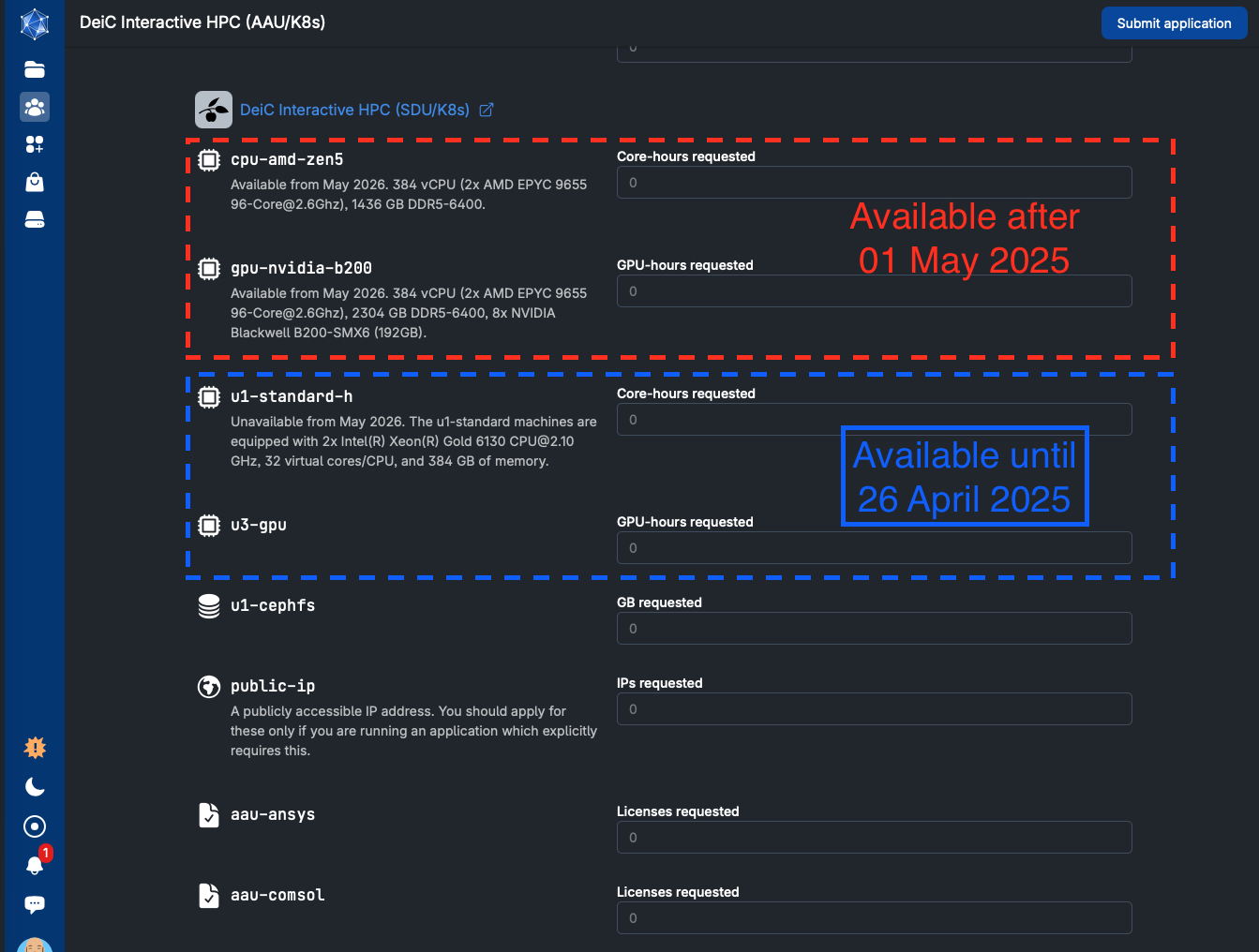
Select the resources that you wish to apply for.
Available resource options
| Resource type | Product identifier | Description | Notes |
|---|---|---|---|
| CPU resources | cpu-amd-zen5 |
General‑purpose CPU compute for data analysis, simulations, preprocessing, and other standard workloads | Suitable for most workloads that do not require GPU acceleration |
| GPU resources | gpu-nvidia-b200 |
GPU compute for AI, machine learning, transcription, and other accelerator‑based workloads | Required for GPU‑accelerated applications |
| Storage | storage |
Persistent data storage required to be able to use the UCloud platform | Storage must be requested as part of all projects |
| Licenses | MATLAB, COMSOL, ANSYS | Access to licensed research software | Available to researchers only, for non‑commercial research activities |
There is a resource estimator available for Transcriber and Dictaphone users.
These licenses are provided for non‑commercial academic research only.
They may not be used for:
- Teaching or coursework
- Student assignments
- Commercial or industry-funded work
Students may use the software only when participating in eligible academic research projects.
MATLAB is available to students by disabling the HPC license
- Your Mathworks license can be attained by following the guide in UCloud's documentation.
- Be aware that you will need to remove devices in your MathWorks profile periodically if you activate your MATLAB license in a UCloud job.
All resources are allocated from the new datacenter, which is now the sole UCloud provider.
Step 5: Motivate your application
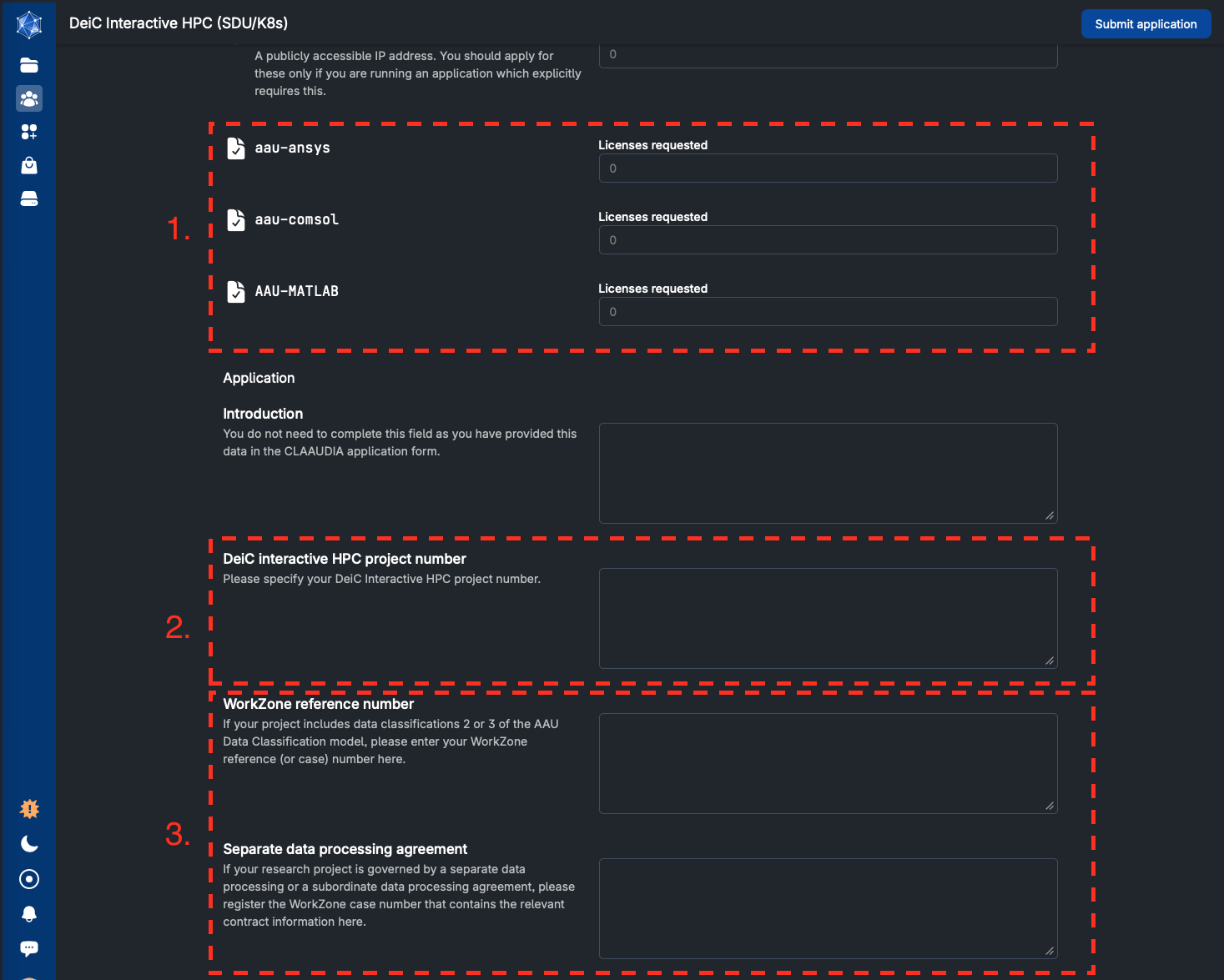
- Your application for a grant should be motivated in the Motivation section.
- Specify the highest AAU data classification level of data to be included in your project.
- Include your WorkZone number, if for all projects with data classification levels 2 or 3.
- Provide your email address (as Principal Investigator in the project).
Motivation requirements:
Please clearly explain (in roughly 100 words) why you are requesting access to UCloud and which research objectives this access will help you achieve. This should at minumum include:
- What is the problem statement addressed by / purpose of the research?
- What are the methods to be used on the platform?
If this description is not complete, the application will not be approved.
Special data processing agreements
Some research groups have data processing agreements that apply to all sub-projects within the scope of those agreements. If your project is governed by a broader data processing agreement, you should submit the case number related to this GDPR registration in the Separate data processing agreement field, and leave the WorkZone reference number field blank.
Step 6: Enter all project participant email addresses
All persons that will participate in the project should have their email addresses included in the email address fields available.
Step 7: External collaborators and DeiC project number
- If there are external collaborators you should specify their name, email address and affiliation in this field. (If there is more than one external collaborator, you should separate their details with a semi-colon ';')
Licensed products warning
No licenced software may be included in projects with external participants.
Step 8: Approval and allocation
After submitting your request:
- The application is reviewed by CLAAUDIA (AAU’s local DeiC front office).
- You will receive confirmation once resources are approved.
- Approved resources will appear directly in your UCloud project.
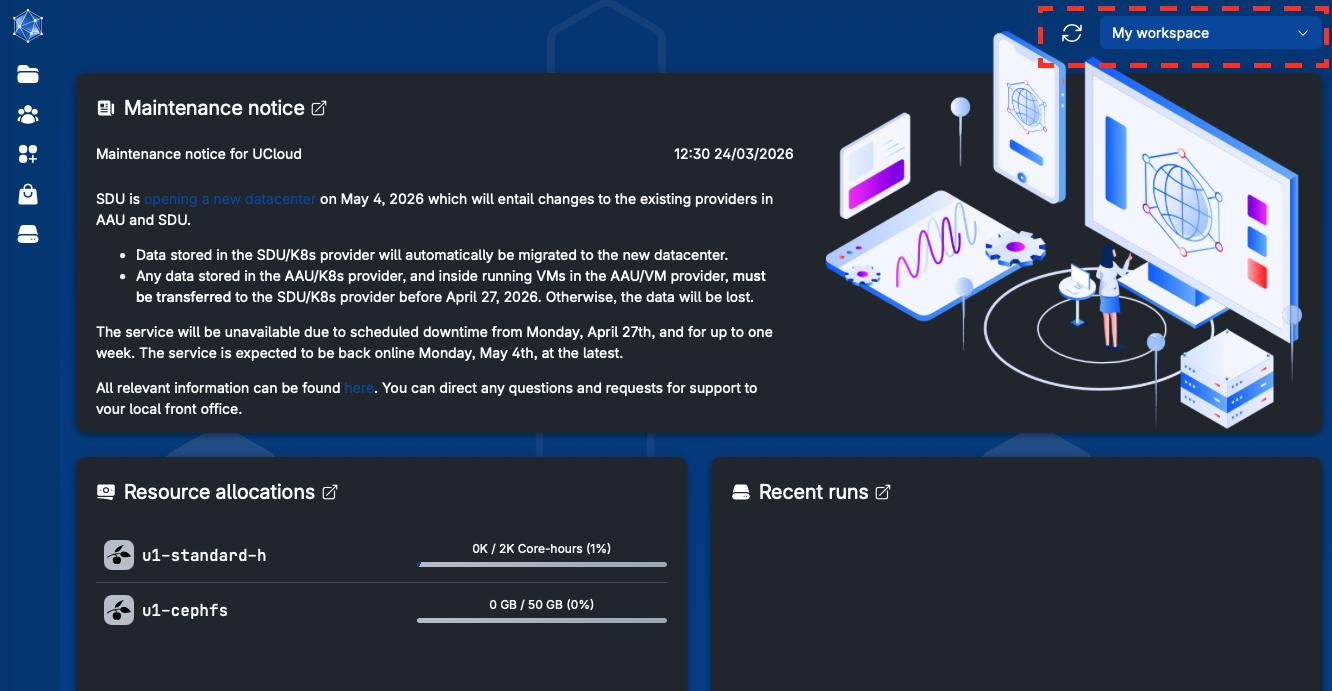
You will find your newly approved project in the project workspace dropdown menu at the top-right corner of the UCloud landing page.
Transcription projects


If your project involves audio transcription, the estimator below can help you assess how many CPU or GPU hours you should request when applying for your project on UCloud.
Estimate required CPU and GPU hours
Open the estimator here: Transcription resource estimator
Dictaphone users:
This estimate can also be used for Dictaphone. This is because the estimate is extra conservative. Dictaphone users are recommended to record audio with a machine type that does not use GPU resources.
How is the estimate conservative?
- There are enough resources suggested that you could transcribe your audio on either the CPU or GPU options.
- Both resources are also doubled. This is to allow you to attempt more than one transcriber model size if you don't get great results with the default settings.
Dictaphone users can launch the application with a small CPU machine type for recording audio, and later return to the recording data and transcribe this with larger CPu or GPU machine types.
Use this estimate as a guideline when requesting resources. If your workload is experimental or your audio material varies significantly, consider applying for slightly more resources than the estimate suggests.
Notes for existing users and migrated projects
As part of the migration to the new SDU datacenter:
- Previous AAU-based providers (AAU/K8s and AAU/VM) have been decommissioned
- Existing allocations expired during the migration period
- Projects must request resources again under the new SDU-based setup
This simplification results in fewer choices and a clearer, faster application process.