How to access
Access it granted though the Mistral access form in the AAU Serviceportal.
Different access options are available, each with their own specific requirements depending on your project needs:
| Option | What you get | Data allowed | What you must provide | API keys? |
|---|---|---|---|---|
| Default workspace | Access to Vibe at chat.mistral.ai and AI Studio at console.mistral.ai, including the Playground, Document AI and Audio transcription. | Level 1 data with no personal data | Consent, and select the default workspace | No |
| Dedicated workspace, no personal data | A closed project workspace. Full access to Vibe, AI Studio, and the API. | No personal data. | Request a dedicated workspace | Yes |
| Dedicated workspace with personal data | A closed project workspace. Full access to Vibe, AI Studio, and the API. | Personal data, including Level 2 or 3 data that contains personal data | WorkZone case number, and confirmation that you have prepared a DPIA together with Grants and Contracts | Yes |
Not sure which data type you have?
Read more about the AAU data classification here
.
Not sure what counts as personal data?
Read more about personal data at AAU here
.
When you have submitted the form, CLAAUDIA will review your application. When your project have been approved you can login by:
For the Default Workspace
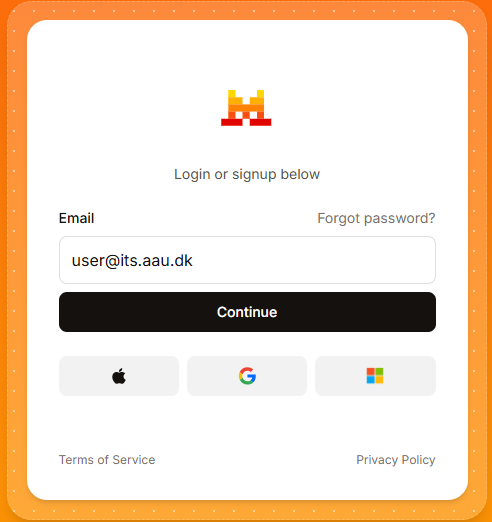
- Go to the Mistral login page
-
Enter your AAU email address and click Continue.
-
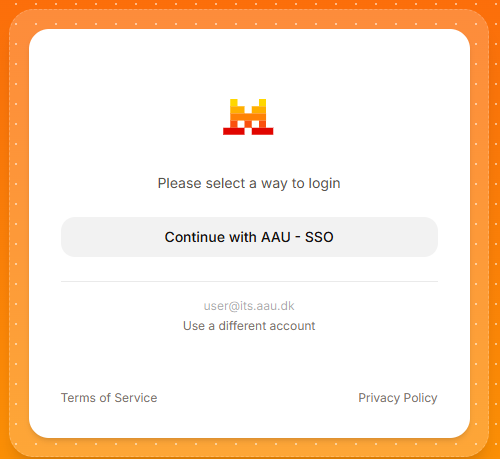
Click Continue with AAU – SSO.
-
Log in with your AAU credentials (e.g.
ab12cd@domain.aau.dk). -
Approve the login using multi-factor authentication (MFA). If you have not set up MFA, see the AAU MFA guide.
(If you are already logged into your AAU account in your browser, you will not need to approve.)
After login:
- Vibe at chat.mistral.ai
- AI Studio at console.mistral.ai
If you applied for the default workspace, use that workspace only.
API keys (including for Vibe Code) are created in AI Studio in a dedicated workspace, not through Vibe Code’s Launch browser sign-in.
For the Dedicated Workspace
Dedicated workspaces can only include the users that have approved the Terms and Conditions, these include:
- The Dedicated Workspace applicant, and
- Any user with an approved Default Workspace.
Steps:
- Submit an application for a Dedicated Workspace.
- Each additional member must submit an application for a Default Workspace.
- CLAAUDIA will grant each member access to Mistral.
- All project members must log into the Mistral platform (See log in process above).
- The project applicant should inform CLAAUDIA when all project members have logged into Mistral, in the ServicePortal case.
- CLAAUDIA will add all project members to the Dedicated Worskspace.
Finding your dedicated workspace
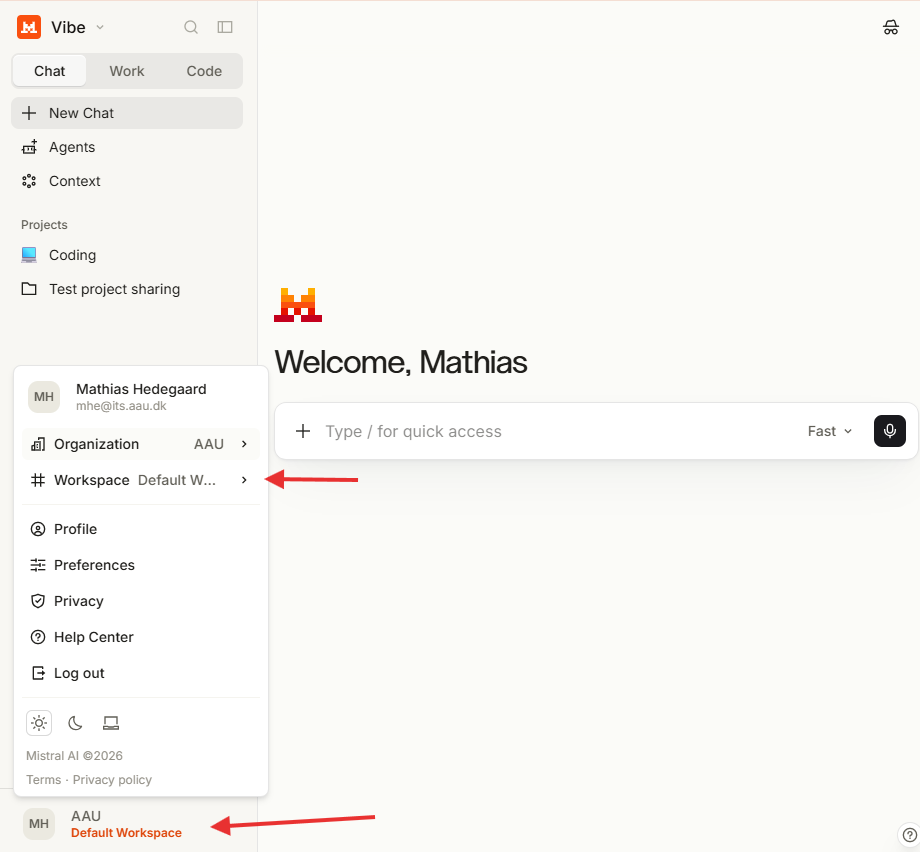
- Click the Default Workspace selector in the bottom-left corner.
- Click the # workspace settings.
- Select your named workspace from the dropdown.
- Confirm in the bottom-left corner that the correct workspace is selected.
FAQ
Why can’t I log in with AAU SSO directly?
Direct SSO login is disabled. Everyone must apply first, including for the Default Workspace.
That is so we can record consent, assign the right workspace, and — for dedicated workspace with personal data — check that a WorkZone number and DPIA are in place before anyone starts working.
Apply through the Mistral access form. After we approve the request, log in with AAU SSO as usual.
I used to log in without applying. Do I need to apply now?
Yes. Previous walk-in access no longer works. Submit the form even if you have used Mistral before.
After I am approved, do I still use AAU SSO?
Yes. The form only grants access. You still log in with Continue with AAU – SSO and your AAU credentials.