File Handling on AI-LAB
Now that you're logged into AI-LAB, it's time to learn how to navigate and manage your files. This guide will help you understand the file system structure and essential commands for working with files.
Understanding Your Environment
When you log into AI-LAB, you're placed in your user directory located at /ceph/home/domain/user. You can confirm your current location by typing pwd.
This directory is your private storage space where you can keep all your files. It's stored on a network file system, so you can access your files from any compute node within the platform.
AI-LAB File System Structure
Here's how files are organized on AI-LAB:
- /ceph AI-LAB's file system
- home user home directories
- [domain] e.g student.aau.dk
- [user] your user directory
- [domain] e.g student.aau.dk
- project shared project directories
- course directory with course specific material
- container directory with ready-to-use applications
- home user home directories
For a detailed overview of the AI-LAB storage system, click here.
Essential Linux Commands
AI-LAB runs on Ubuntu Linux, so you'll work primarily through a command-line interface. Don't worry if you're new to Linux - these essential commands will get you started.
Navigation Commands
| Command | Description | Example |
|---|---|---|
pwd |
Show current directory | pwd |
ls |
List files and folders | ls -la (detailed list) |
cd |
Change directory | cd /ceph/project |
File and Directory Management
| Command | Description | Example |
|---|---|---|
mkdir |
Create directory | mkdir my_project |
rm |
Remove file | rm old_file.txt |
rm -r |
Remove directory | rm -r old_folder |
cp |
Copy file | cp file.txt backup/ |
cp -r |
Copy directory | cp -r project/ backup/ |
mv |
Move/rename | mv old_name.txt new_name.txt |
cat |
Display file content | cat script.py |
Text Editing with Nano
Nano is a beginner-friendly text editor perfect for creating and editing scripts.
Scripts are not meant to be written directly in the terminal. If you need to write a script, you can either upload your script as a file or write the script in the text editor.
To open the text editor, where you can create or edit your script use the command nano.
Nano Keyboard Shortcuts:
- Save:
Ctrl + O, thenEnter - Exit:
Ctrl + X - Cut line:
Ctrl + K - Paste:
Ctrl + U - Search:
Ctrl + W - Help:
Ctrl + G
Transferring Files
You'll often need to move files between your local computer and AI-LAB. Here are the best methods for each operating system.
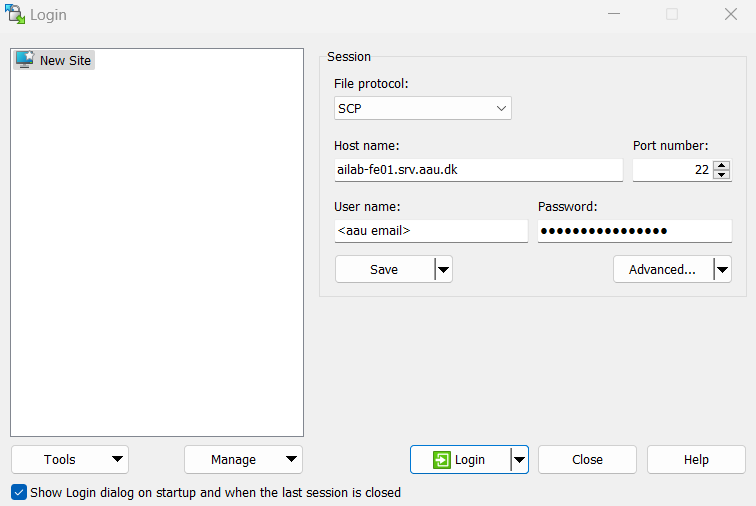
Recommended: WinSCP (Graphical Interface)
- Download and install WinSCP
- Open WinSCP and configure the connection:
- Host name:
ailab-fe01.srv.aau.dkorailab-fe02.srv.aau.dk - User name: Your AAU email address
- Password: Your AAU password
- Host name:
- Connect and you'll see a split-screen interface
- Drag and drop files between your computer (left) and AI-LAB (right)
Alternative: Command Line (PowerShell)
# Upload file to AI-LAB
scp myfile.txt user@student.aau.dk@ailab-fe01.srv.aau.dk:~/

# Upload entire directory
scp -r my_project/ user@student.aau.dk@ailab-fe01.srv.aau.dk:~/

# Download file from AI-LAB
scp user@student.aau.dk@ailab-fe01.srv.aau.dk:~/myfile.txt .

# Download entire directory
scp -r user@student.aau.dk@ailab-fe01.srv.aau.dk:~/my_project/ .
Command Line with scp
# Upload file to AI-LAB
scp myfile.txt user@student.aau.dk@ailab-fe01.srv.aau.dk:~/

# Upload entire directory
scp -r my_project/ user@student.aau.dk@ailab-fe01.srv.aau.dk:~/

# Download file from AI-LAB
scp user@student.aau.dk@ailab-fe01.srv.aau.dk:~/myfile.txt .

# Download entire directory
scp -r user@student.aau.dk@ailab-fe01.srv.aau.dk:~/my_project/ .
File Transfer Tips
- Multiple files: Compress files into a
.zipor.tar.gzarchive first - Hidden files: In WinSCP, enable "Show hidden files" in Options → Preferences → Panels
- Network issues: If transfers fail, try the other login node (
ailab-fe02)
Creating Shared Project Directories
AI-LAB allows groups to collaborate by creating shared project directories in /ceph/project.
Create Your Project Directory
Navigate to the project directory and create your project folder:
Projects folders
All project folders are fully accessible for all AI-LAB users. This means that all AI-LAB users can read, write, edit and create files. Good practise is to save back-up-files locally on your computer.
Best Practices for Collaboration
- Communicate with your group about who's working on what files
- Use descriptive filenames to avoid conflicts
- Create subdirectories for different parts of the project
Now that you know the basics of file handling, lets proceed to learn how to run jobs on AI-LAB