Vibe Code
Vibe Code is Mistral’s coding assistant. It can run in your terminal (CLI), in the VS Code extension or another coding inferece using the OpenAi API scheme. It can read and write files in your project, run commands, and help with coding tasks under your supervision.
For product details, see Mistral’s Vibe Code documentation.
Do not sign in with Launch browser
Creating API keys directly through Vibe Code is disabled at AAU. If you choose Launch browser, authorisation will fail with This workspace can't be used.
Create an API key in AI Studio and paste it into the CLI or the VS Code extension instead.
API keys require a dedicated workspace. Apply via How to access Mistral if you do not have one yet. Keys are personal — do not share them, and rotate them at least every 30 days. See Responsible use and in the terms and conditions.
Create an API key in AI Studio
- Apply for a dedicated workspace if you do not already have API access.
- Log in to AI Studio.
- Select your named project workspace (not the default workspace).
- Open API Keys and create a key.
- Copy the key and store it securely. You will only see the full key once.
Treat the key like a password. Do not commit it to Git, paste it into chats, or share it in notebooks.
Why Launch browser does not work
The CLI and the VS Code extension offer Launch browser as the recommended sign-in. That flow tries to issue a Vibe Code key in the workspace. At AAU that option is turned off due to a malfunction of the Vibe API key, so the browser page looks like this:
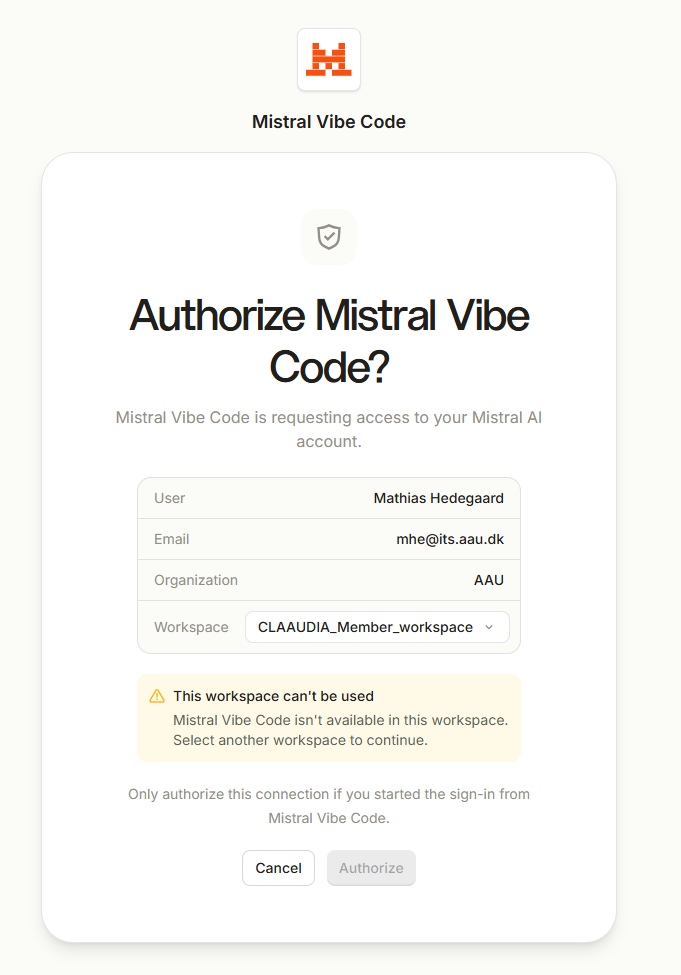
Cancel that screen and use an API key from AI Studio instead.
Add the key in the CLI
Install the CLI if you have not already. Mistral’s installer is documented in Install and setup:
Then, in your project folder:
On first run you get a sign-in menu. Do not choose Launch browser. Select Use an API key and paste the key from AI Studio.
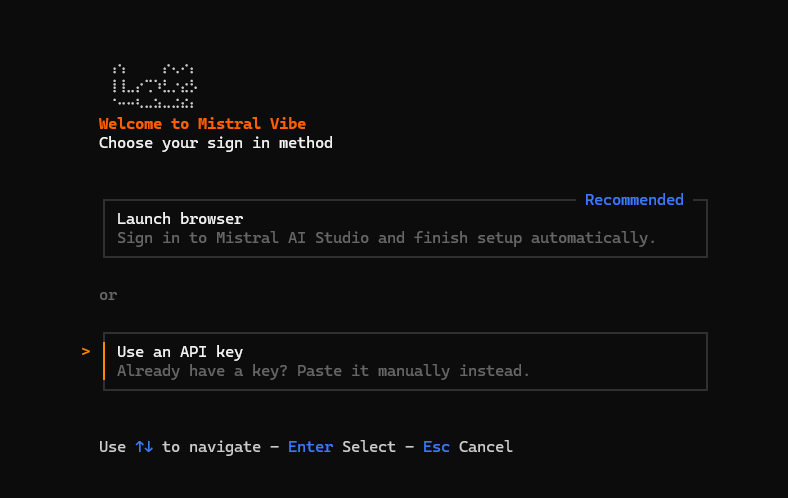
You can run the setup again at any time with vibe --setup.
You can also set the key in your environment:
On Windows PowerShell:
Related pages
| Topic | Where to go |
|---|---|
| Apply for API access | How to access Mistral |
| Log in to AI Studio | Logging in to AI Studio |
| Key rotation and quotas | Tokens and seats |
| Binding rules | T&C |
| Vibe Code on UCloud | Mistral Vibe and Continue on UCloud |
| Mistral product docs | Vibe Code |