Matlab
In the following we will be guiding you throught the process of installing Matlab on a Strato Instance.
Info
Matlab is also available on DeiC Interactive HPC (also known as UCloud). This requires no setup and ships with a GUI out of the box. Read more about this possibility in the official platform documentation.
Installing Matlab
Begin by updating the APT packaging index, so we have an updated list of sources to download applications from:
Before going further, we will need to install an unzip tool and some additional libraries recommended by Mathworks.
Download the Matlab Package Manager (MPM) from Mathworks and make it executable:
sudo wget -P /usr/local/bin/ https://www.mathworks.com/mpm/glnxa64/mpm && sudo chmod +x /usr/local/bin/mpm
Install Matlab using MPM. Note that here we will be installing a version from late 2024 - check Mathworks website for a newer release.
To be able to launch Matlab when we type matlab - we will need to add the directory where the matlab executable is found to our $PATH variable. We can make this addition permanent by writing to the file .bashrc, which is read every time a new shell session starts.
We source the .bashrc-file, to apply these changes to the current session.
Installing aditional toolboxes
Additional matlab toolboxes can be installed in the following manner:
mpm install --release=R2024b --destination=$HOME/matlab --products Signal_Processing_Toolbox Communications_Toolbox
Running Matlab
In the following example, we will be running Matlab on the Strato instance, but rendering the application's graphics in the webbrowser of your local computer. In order for your local computer to receive the datastream from the server, we will need to add a small detail to our SSH command.
This establishes a connection between your Strato instance and a network adress on your computer (localhost). If you did not do this when you logged in to your instance, simply log out and log back in with these details added.
Now let's proceed with the install. We will install pip along with some dependencies.
On modern Linux distributions, you will not be able to install Pip modules system wide - they must be installed in a virtual environment. Let's create one with:
Finally we can activate the virtual environment before installing:
The virtual environment is not loaded by default, when you log in to the instance. You will have to either run source command (shown above), or run this command, to add the source command to your .bashrc file (this file is sourced on login).
With the virtual environment activated, you can now install the Jupyter Kernel with:
Now launch Jupyter with:
This will output a great many lines. Towards the end of the output, you will find a line that looks something like this:
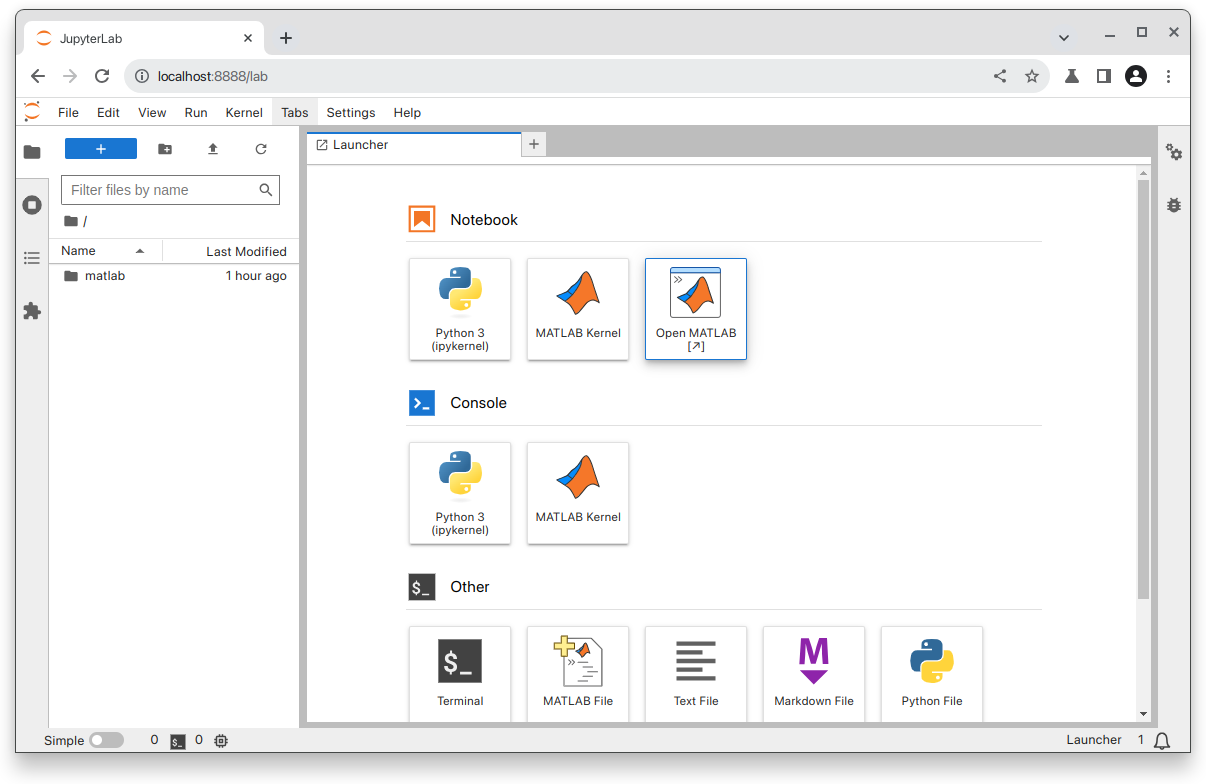
This URL has the port number we specified earlier and a special security token. Copy this link and paste it into your web browser. You can now choose to either run Matlab as an application inside your browser or as a Jupyter Notebook.
Activate license
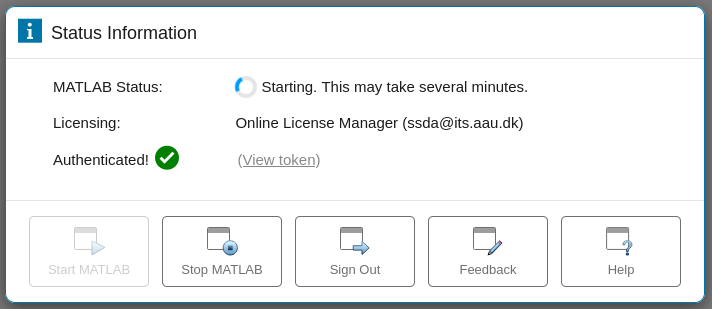
If you chose "Open Matlab" you will be met with a registration window. Enter your AAU-email.
Wait for the license to be acquired. This may take a few minutes.
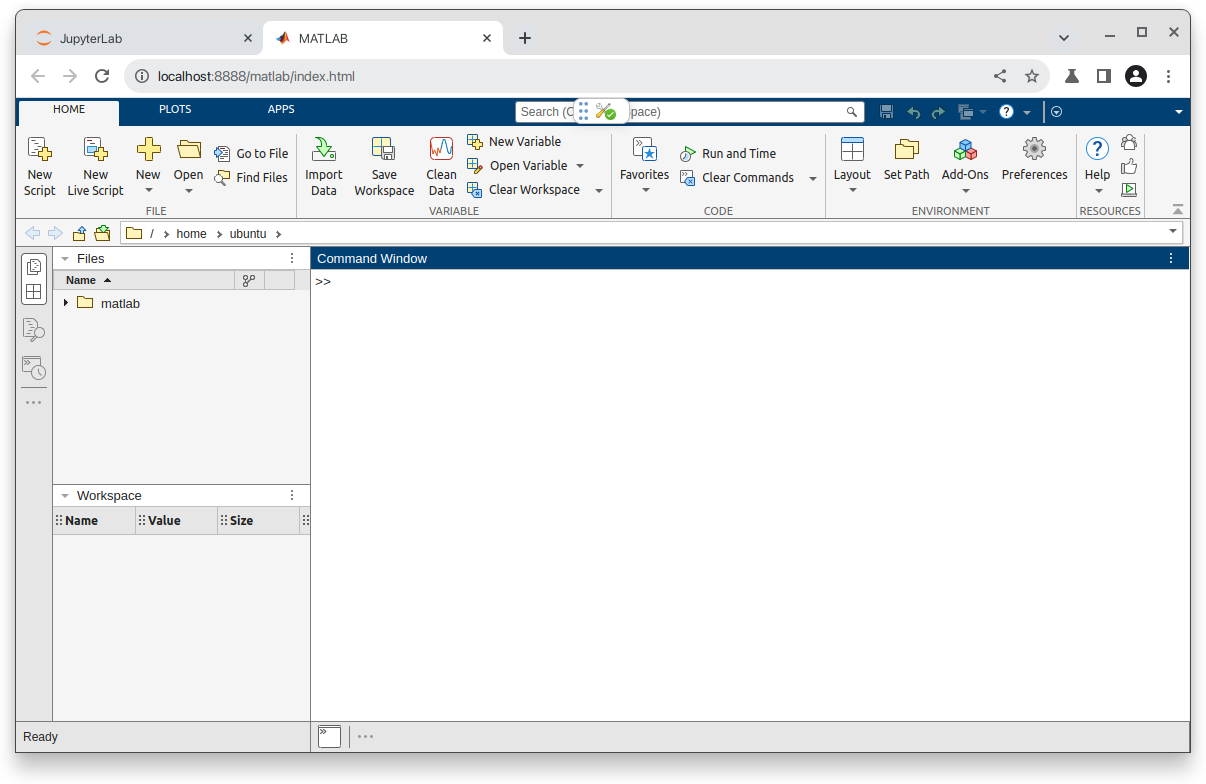
After this step, you should be inside the application and everything should feel familiar.