Logging in to AI Studio
AI Studio is accessed at console.mistral.ai using your AAU credentials. You must apply for access before you can log in.
Step 1 — Go to the login page
Go to console.mistral.ai
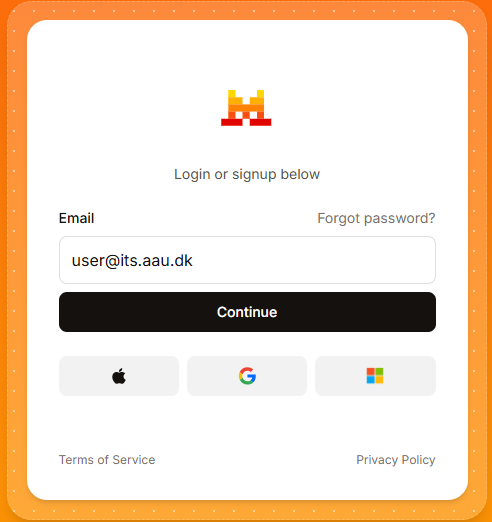
Step 2 — Enter your AAU email
Enter your AAU email address (e.g. ab12cd@domain.aau.dk) and click Continue.
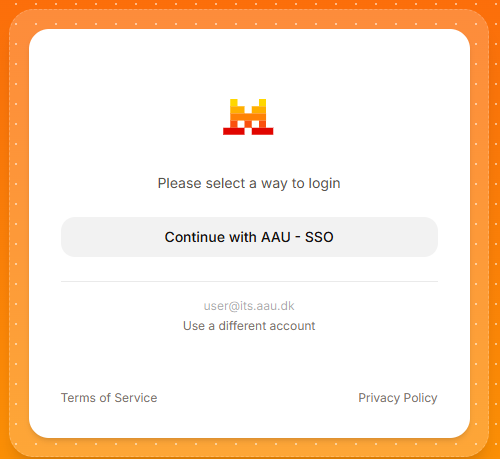
Step 3 — Select AAU SSO
Click Continue with AAU – SSO to be redirected to the AAU login page.
Step 4 — Log in with AAU credentials
Log in with your AAU credentials (for example ab12cd) and approve the login using multi-factor authentication (MFA).

Step 5 — Finding your dedicated workspace
- Click the Default Workspace selector in the bottom-left corner.
- Click the # workspace settings.
- Select your named workspace from the dropdown.
- Confirm in the bottom-left corner that the correct workspace is selected.

MFA not set up?
If you have not set up multi-factor authentication, see the AAU MFA guide before logging in.
Need a dedicated workspace?
Apply for Dedicated workspace, no personal data or Dedicated workspace with personal data (with a WorkZone number and a DPIA). See How to access Mistral.
Access issues?
If you cannot log in, contact us via the service portal.
Using Vibe Code?
Create the API key here in AI Studio, then paste it into the CLI or the VS Code extension. Do not use Launch browser. See Vibe Code.