
Navigating TAAURUS
This guide will help you navigate the platform, understand the available applications, and work with the file system effectively.
Desktop Overview
When you first log into TAAURUS, you'll see a Windows desktop environment with several key components:
- Desktop Icons: Shortcuts to commonly used applications
- Taskbar: Quick access to running applications and system functions
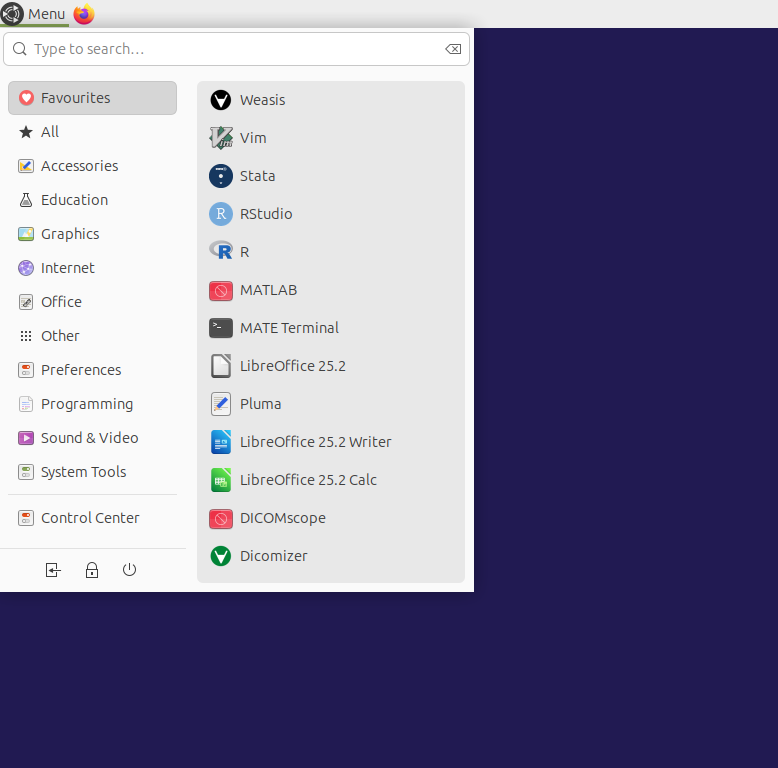
- Start Menu: Access to all installed software and system tools
- File Explorer: Navigate and manage your files and folders

Available Applications
TAAURUS comes pre-installed with applications for research and high-performance computing:
Scientific and Statistical Software
- R and RStudio
- Python and Anaconda
- MATLAB
- Stata
Medical and Imaging Software
- DICOMscope: Medical imaging viewer for DICOM files
- Weasis: Advanced medical image viewer
Office Applications
- LibreOffice Calc: Spreadsheet application for data analysis
- LibreOffice Writer: Word processing for documentation and reports
- PDF Reader: Atril Document Viewer for viewing research documents
- Pluma: Simple text editor
Terminal
- MATE Terminal
File System Navigation
Project-Specific Storage
TAAURUS provides dedicated, secure storage for each project located in /media/project:
/media/project/
├── data/          # Your project's dataset
├── work/          # Scripts and other project relevant files
└── export/        # Files and folders ready for exporting
File Management Best Practices
Project Organization: Keep all project files in your dedicated storage area. Do not use your own storage (/home/domain.aau.dk/user)
Working with Applications
Starting Applications
From Start Menu
- Click the Start button
- Browse or search for your application
- Click to launch