
How to Access Mistral
Access to Mistral is granted in two stages — the base login works for both Le Char and AI Studio interfaces, while API key access requires an additional application.
Not sure which product to use?
See When to use Le Chat vs AI Studio for a full comparison of Le Chat and AI Studio.
Access Levels
Understanding the difference between access levels helps you request the right one and use the service correctly.
| Level | What you get | Who needs it |
|---|---|---|
| Le Chat & AI Studio (without API keys) | Access to both the conversational interface at chat.mistral.ai and the AI Studio console at console.mistral.ai, including the Playground, Document AI and Audio transcription. All standard features except programmatic/API key access. | Anyone who wants to use Mistral for writing, research assistance, summarisation, model testing, or prompt refinement—without needing to call the API from code. |
| AI Studio (with API keys) | Full programmatic access. Create API keys, call models from code, process data in bulk, and build automated workflows. | Researchers building custom pipelines, running batch analyses, or integrating Mistral into their own tools. |
Level 1 — Log in (Le Chat and AI Studio without API Keys)
All AAU academic staff can log in immediately via SSO. No application needed.
Not employed as academic staff?
Access is granted based on the academic staff role at AAU. If you hold a different employment category — such as technical, administrative, or external staff — but need access to support ongoing academic research activities, you must request access manually.
Contact CLAAUDIA through the AAU Serviceportal and include a short description of:
- your role and department
- which research project or activity you are supporting
- why access to Mistral is needed for that work
CLAAUDIA will review the request and confirm whether access can be granted.
- Go to the Mistral login page
-
Enter your AAU email address and click Continue.
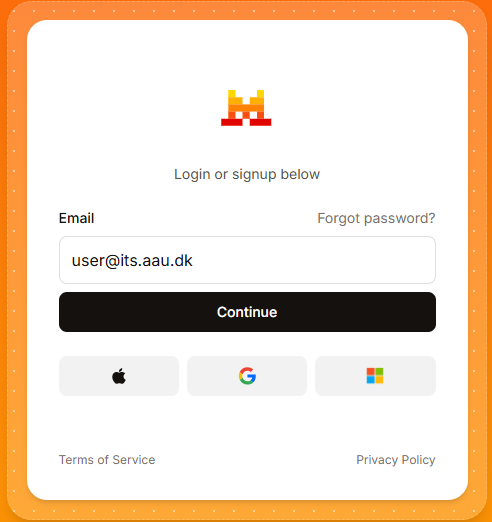
-
Click Continue with AAU – SSO.
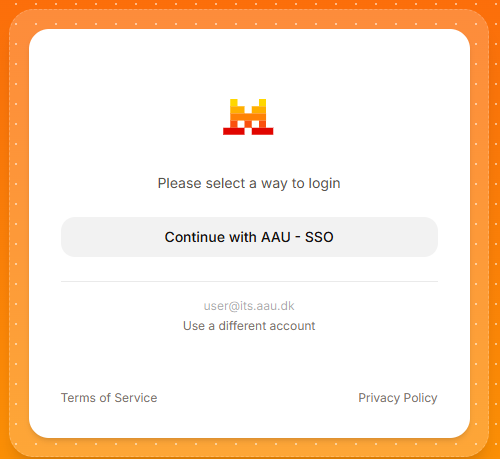
-
Log in with your AAU credentials (e.g.
ab12cd@domain.aau.dk). - Approve the login using multi-factor authentication (MFA). If you have not set up MFA, see the AAU MFA guide.
After completing these steps, you have access to:
- Le Chat at chat.mistral.ai
- AI Studio Playground at console.mistral.ai (without API keys)
Level 2 — Request API key access
API keys allow you to call Mistral models programmatically from your own code. This requires an additional approval step.
Prerequisites
Complete Step 1 and verify that you can log in to both Le Chat and AI Studio before applying.
How to apply
- Log in to AI Studio at console.mistral.ai.
- Go to the CLAAUDIA Serviceportal and fill out the form Mistral workspace request form (link to be inserted).
- The CLAAUDIA team will review your request. If approved, they will create a workspace named your title for your project.
- You will receive a notification when the workspace is ready.
Finding your workspace
Once a workspace is created for you:
- Log in to AI Studio.
- Click the Default Workspace selector in the top-left corner.
- Select your named workspace from the dropdown.
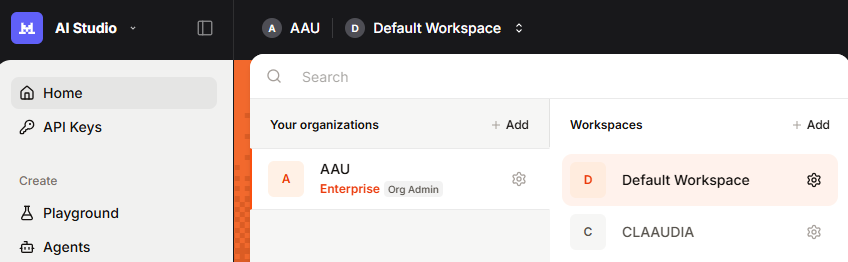
API keys you create will be scoped to the selected workspace. Keys created in one workspace do not work in another.