
Logging into TAAURUS
This guide will help you connect to TAAURUS using Remote Desktop Protocol (RDP).
Prerequisites
- Access to TAAURUS platform
- Remote Desktop Protocol (RDP) client installed (see the guides below)
- AAU email
- Microsoft Authenticator app for 2FA authentication (see MFA Setup Requirements below)
- AAU network connection
- If off campus please follow these instructions to set up VPN at AAU
- MFA setup
- If you haven't set up MFA yet, please follow this setup guide
-
Make sure to choose the notification method (push notifications) during setup, not the code method.
Changing from Code Method to Notification Method
If you already have MFA set up but are using the code method, you need to change it to the notification method:
- Open a new incognito/private browser window
- Go to https://aka.ms/mfasetup and log in
- Change "Default sign-in method" to "App based authentication - notification"
- Click "Confirm"
This will enable push notifications in your Microsoft Authenticator app, which is required for TAAURUS login.
Step 1: Connecting from Windows
On your local Windows PC:
- Open the Start menu and search for Remote Desktop Connection
- Select Remote Desktop Connection from the results
- Danish users: Look for "Forbindelse til Fjernskrivebord"
Step 2: Enter Server Details
- In the Remote Desktop Connection window, enter the server address:
sp-test05.srv.aau.dk - Click Show Options to access Advanced settings in the tab
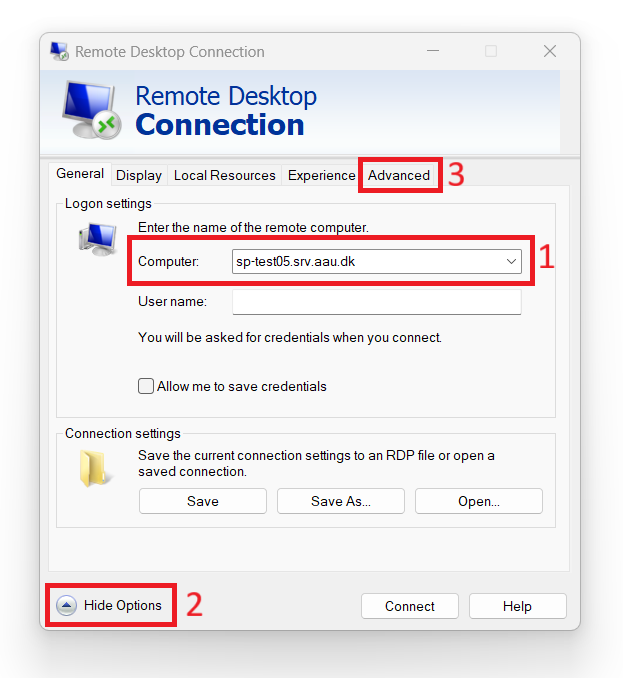
Step 3: Configure Gateway Settings
- Go to the Advanced tab
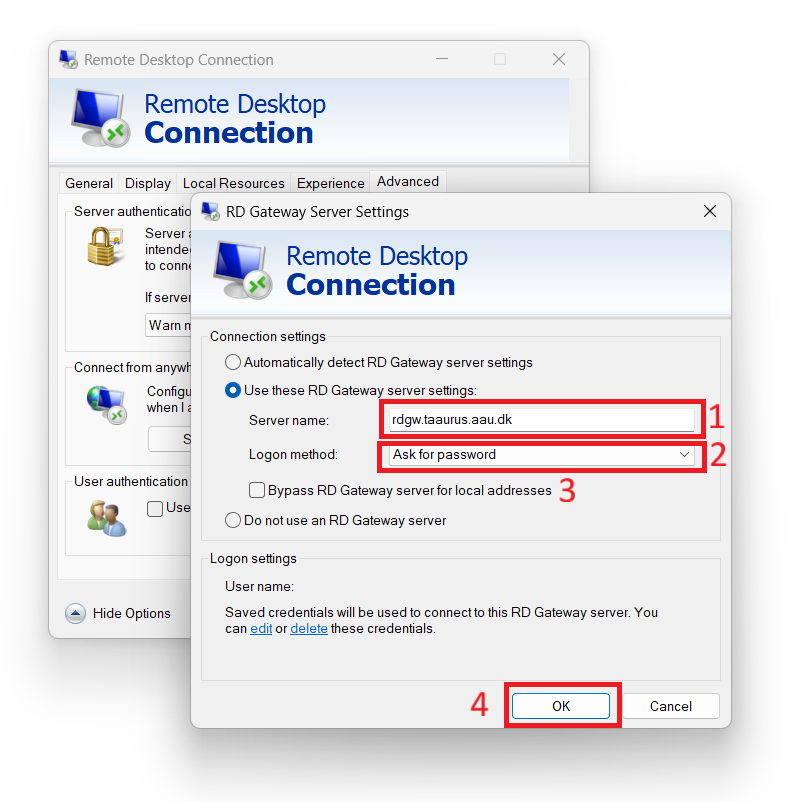
- Click Settings... under "Connect from anywhere"
- In the Connection settings dialog:
- Enter
rdgw.taaurus.aau.dkin the Server name field - Select Ask for password from the Logon method dropdown
- Uncheck "Use these RD Gateway server settings"
- Enter
- Click OK to save settings
- Click Connect to initiate the connection
Step 4: Authentication Process
You will go through a multi-step authentication process:
First Authentication
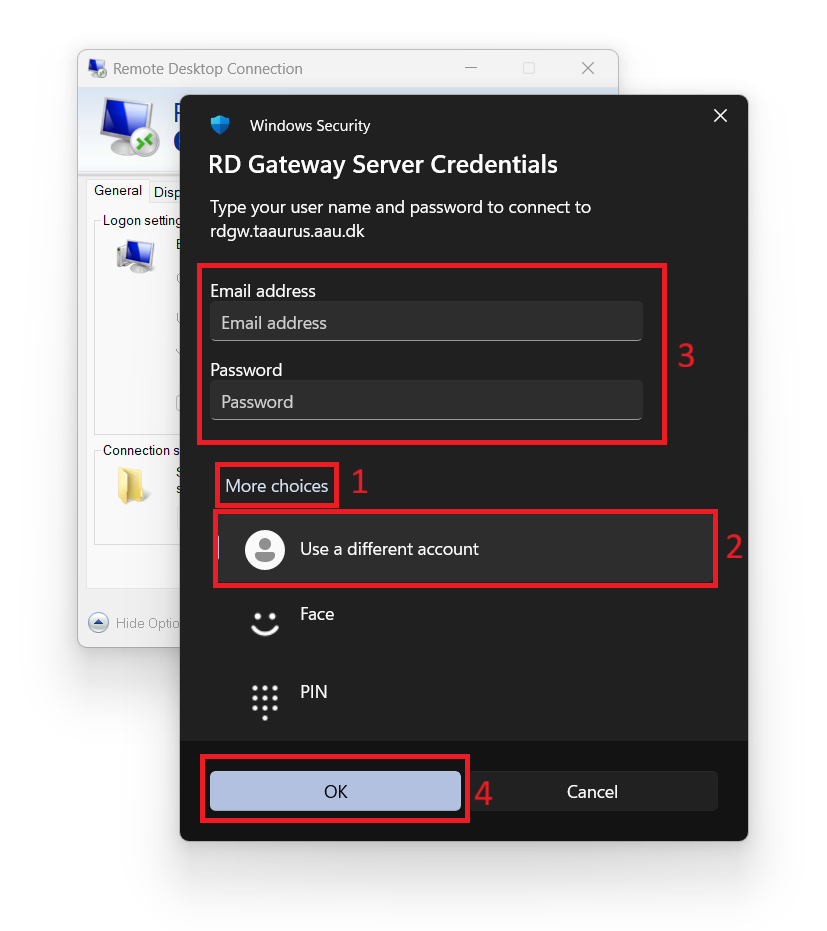
- A Windows Security popup will appear
- Click More choices and then Use a different account
- Enter your AAU email address (You need to use the 6-digit email, like
xx11yy@domain.aau.dk) and password - Click OK
Second Authentication (2FA)
- You will be prompted to authenticate using your Microsoft Authenticator app
- If you need help setting up AAU MFA please follow these instructions
- Open the app and approve the login request
Final Authentication
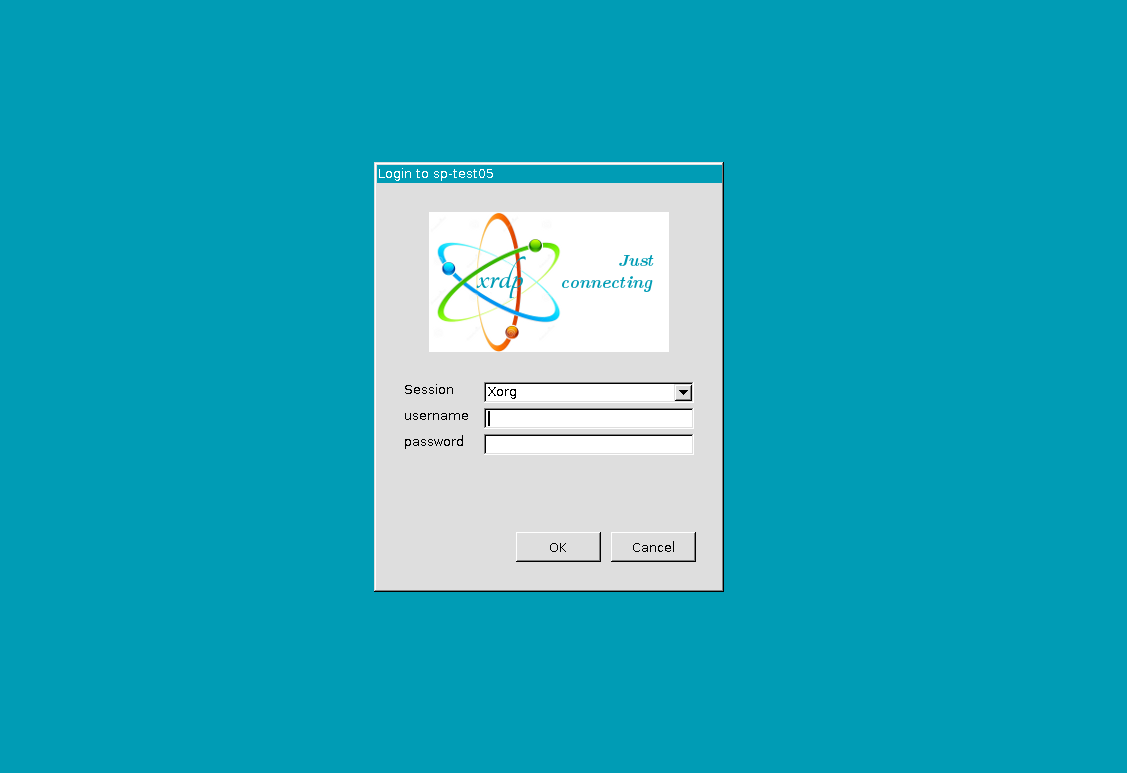
- You may need to authenticate once more with your AAU email (You need to use the 6-digit email, like
xx11yy@domain.aau.dk) and password
Step 5: Success!
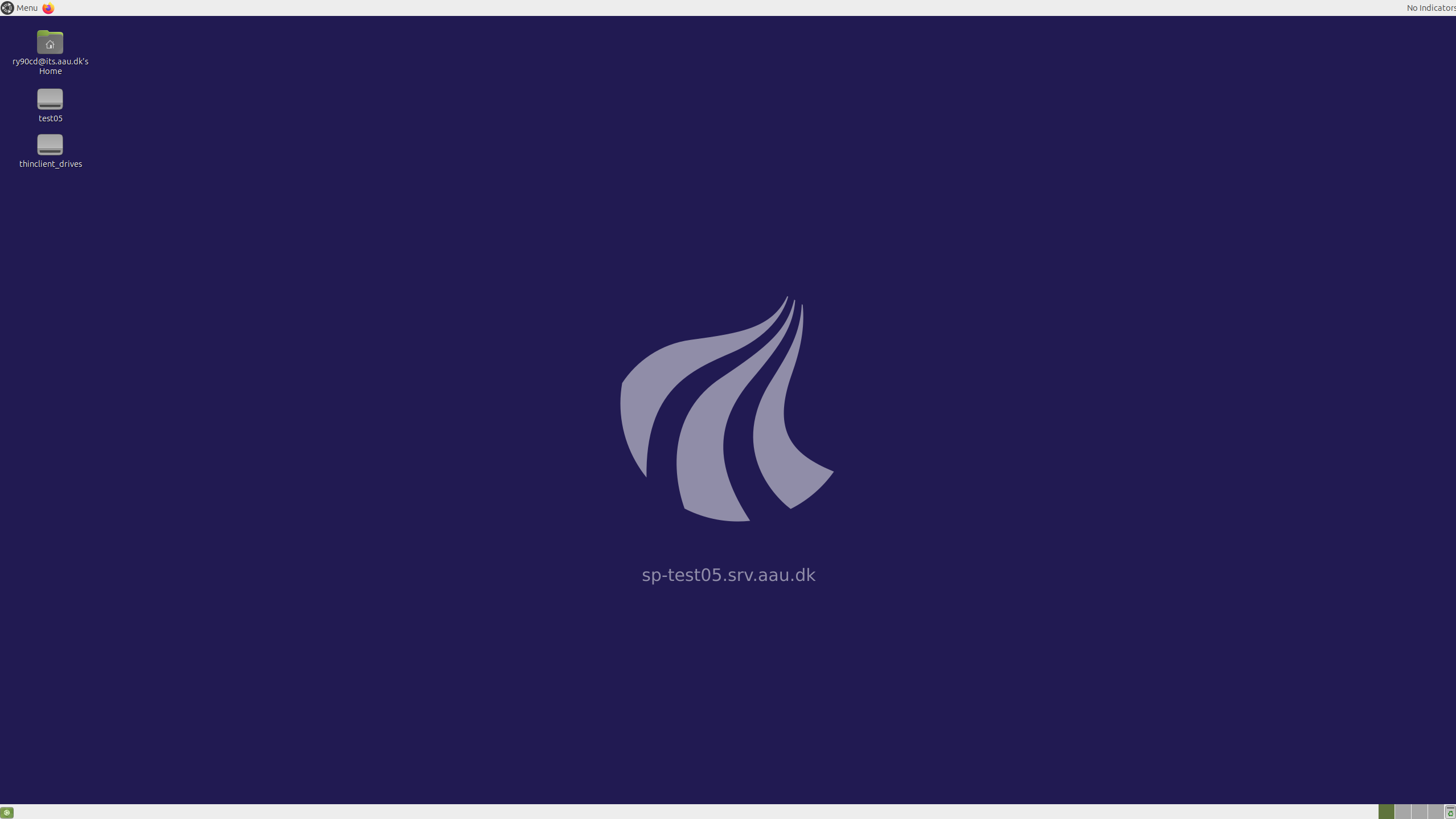
Once authenticated, you will be connected to the TAAURUS remote desktop environment. You should see the desktop interface of the TAAURUS server.
Troubleshooting
If you encounter any issues during the login process:
- Connection fails: Check that you are connected to AAU network and try again
- Authentication errors: Verify your AAU credentials and MFA setup
- Gateway issues: Ensure you've correctly configured the RD Gateway settings
- Still having problems: Contact CLAAUDIA support at serviceportal.aau.dk
Step 1: Connecting from macOS
TAAURUS provides access through a Windows Remote Desktop environment, which means all operating systems must connect using the Remote Desktop Protocol (RDP).
Because only Windows includes an RDP client by default, macOS users must install one before connecting.
Install Microsoft Remote Desktop
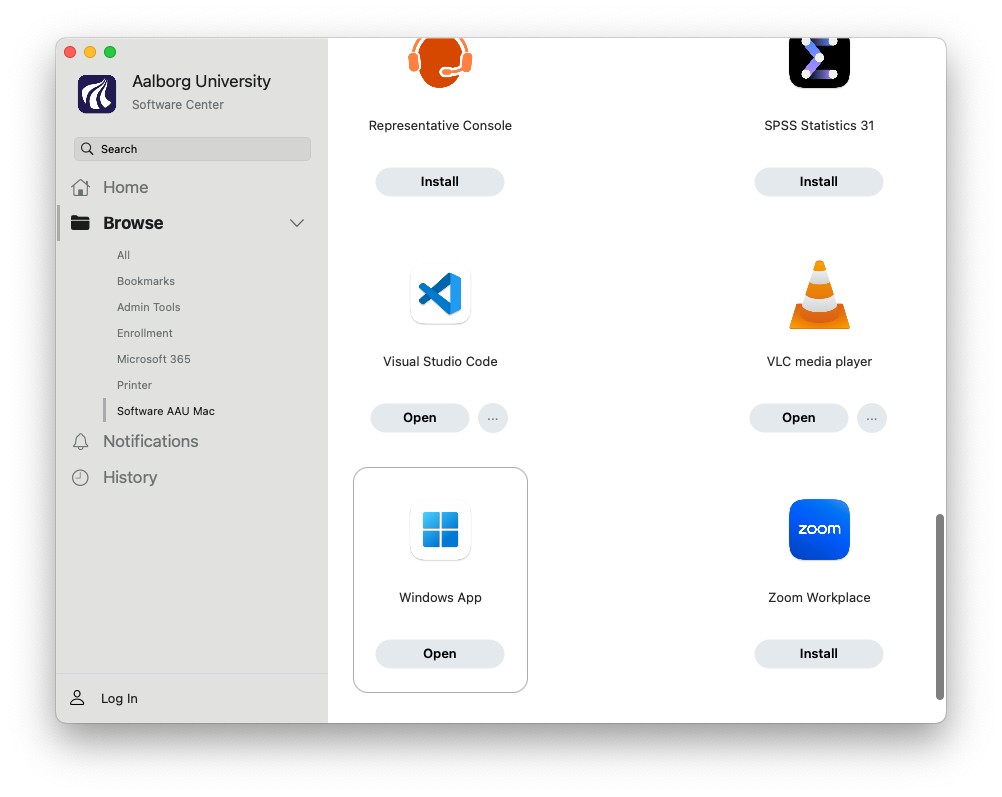
- Open the Software Center
- Search for Windows App
- Install the application
Step 2: Configure the connection
-
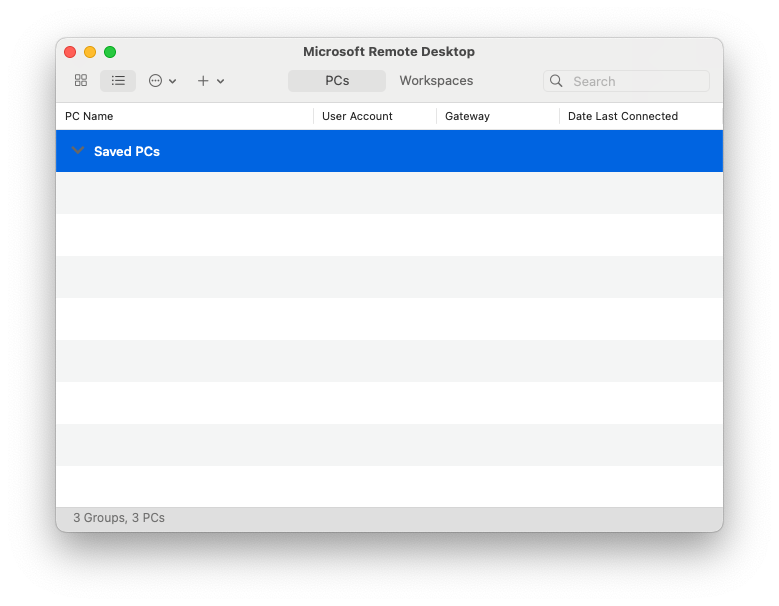
Open Microsoft Remote Desktop
-
Open Settings in top menu (⌘ ,)
- Add Gateway in "Gateways", use gateway name:
rdgw.taaurus.aau.dk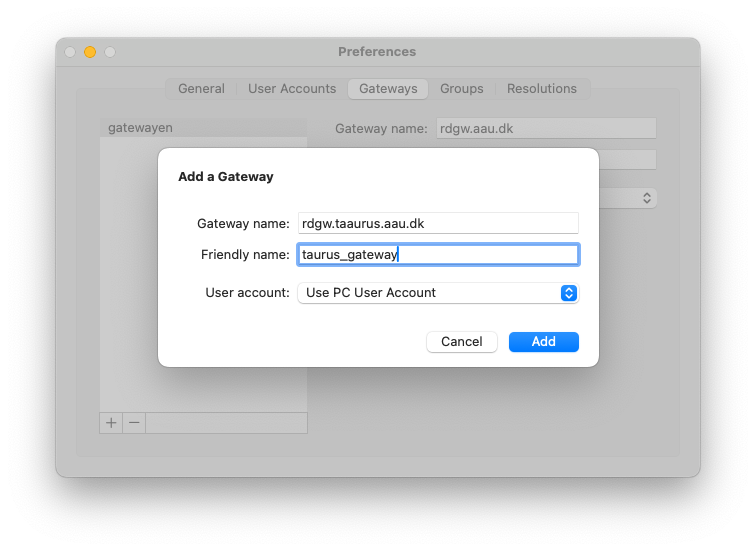
- Click Connections -> Add PC (⌘ N) use the server address for your project, fx
sp-test05.srv.aau.dk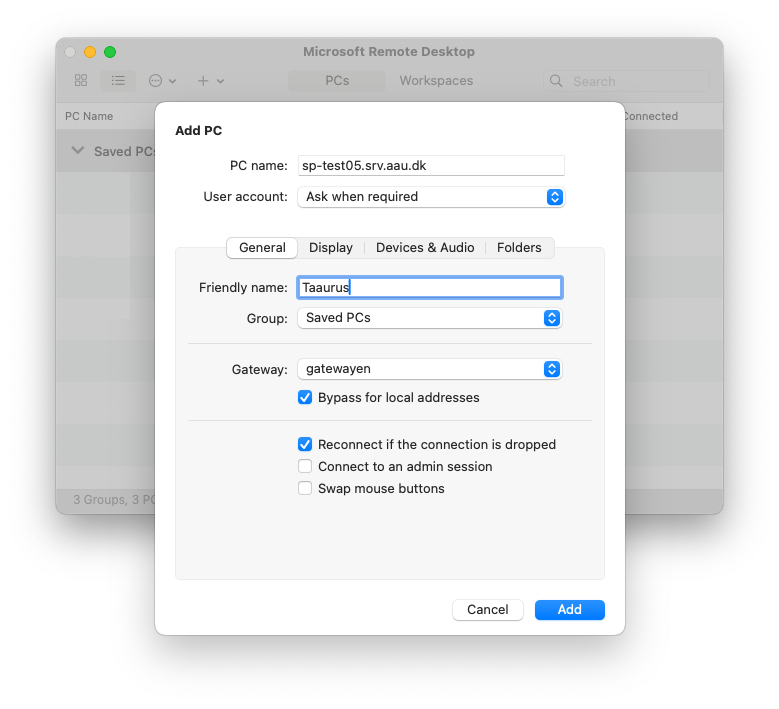
Save the connection and double-click it to connect.

Step 3: Authentication Process
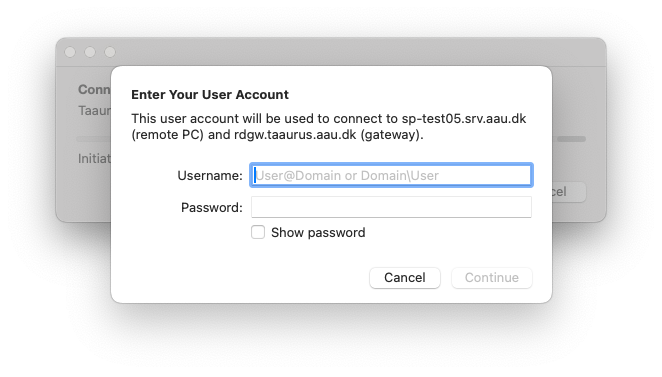
You will be prompted to log in with your AAU email (You need to use the 6-digit email, like xx11yy@domain.aau.dk) and password, followed by approval in Microsoft Authenticator.
Step 4: Final Authentication
- You may need to authenticate once more with your AAU email (You need to use the 6-digit email, like
xx11yy@domain.aau.dk) and password
Step 5: Success!
Once authenticated, you will be connected to the TAAURUS remote desktop environment. You should see the desktop interface of the TAAURUS server.
Troubleshooting
If you encounter any issues during the login process:
- Connection fails: Check that you are connected to AAU network and try again
- Authentication errors: Verify your AAU credentials and MFA setup
- Gateway issues: Ensure you've correctly configured the RD Gateway settings
- Still having problems: Contact CLAAUDIA support at serviceportal.aau.dk
Connecting from Linux
TAAURUS provides access through a Windows Remote Desktop environment, which means all operating systems must connect using the Remote Desktop Protocol (RDP).
Because only Windows includes an RDP client by default, Linux users must install one before connecting.
Linux desktop environments use a display server to handle windows, input, and graphics.
The two most common ones are:
- X11 (X.Org) – Older, very widely supported
- Wayland – Newer, more secure, and default on many modern distributions
To check which one you are running, open a terminal and run:
echo $XDG_SESSION_TYPE
- Output
x11→ follow X11 instructions - Output
wayland→ follow Wayland instructions
Step 1: Install FreeRDP
FreeRDP is an open-source Remote Desktop (RDP) client for Linux.
For X11
sudo apt install freerdp2-x11
This installs the xfreerdp command.
For Wayland
sudo apt install freerdp2-wayland
This installs the wlfreerdp command
Step 2: Connect to TAAURUS
Use the command that matches your display server.
Wayland
wlfreerdp /v:SERVER-NAME /f /u:AAU-EMAIL /g:rdgw.taaurus.aau.dk
X11
xfreerdp /v:SERVER-NAME /f /u:AAU-EMAIL /g:rdgw.taaurus.aau.dk
Replace SERVER-NAME with your TAAURUS projects server name.
Replace AAU-EMAIL with your AAU Email. You need to use the 6-digit email, like xx11yy@domain.aau.dk.
Parameter explanation:
- `/v:` – Target TAAURUS server
- `/f` – Fullscreen mode
- `/u:` – Your AAU username (email format)
- `/g:` – RD Gateway used for secure access
When prompted: 1. Enter your AAU password. 2. Approve the login in Microsoft Authenticator
You may be asked to authenticate more than once — this is expected.
Known Notes & Limitations
- MFA must be set up with Microsoft Authenticator push notifications
- VPN may be required if you are off campus
- Clipboard and drive redirection may behave differently than on Windows/macOS
- This setup is not guaranteed to work on all Linux distributions
Need Help?
If this does not work for you, please submit a support ticket and include: - Your Linux distribution - Whether you use X11 or Wayland - The full command you tried - Any error output from the terminal
👉 Submit a ticket via the AAU Service Portal:
https://serviceportal.aau.dk/serviceportal?id=sc_cat_item&sys_id=a05e2fb4c3434610f0f3041ad00131d0
Next Steps
Now that you're logged in, you're ready to explore the TAAURUS platform. Continue to learn about navigating TAAURUS, available applications, and the file system.