
Python on TAAURUS
Installing Python packages in a virtual environment
TAAURUS has a mirrored PyPI repository, so you can install most Python packages with pip inside a virtual environment. This guide shows how to set up a virtual environment and install packages in your project's work directory.
Step 1: Open the terminal
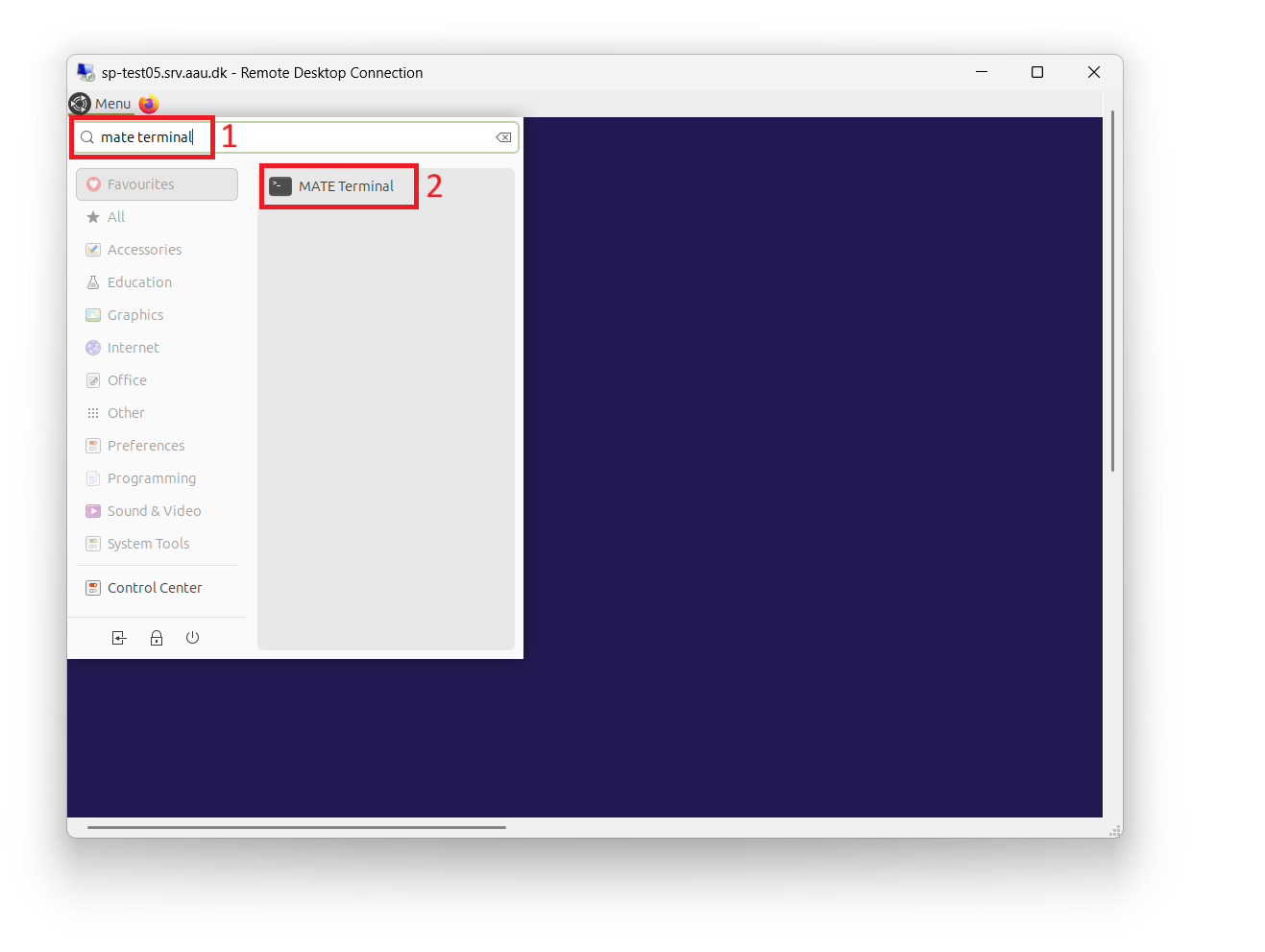
Go to Menu in the top left corner, search for mate terminal, and click the application to start it.
Improve terminal readability
The default terminal theme can be low contrast. To switch to a darker, higher‑contrast scheme:
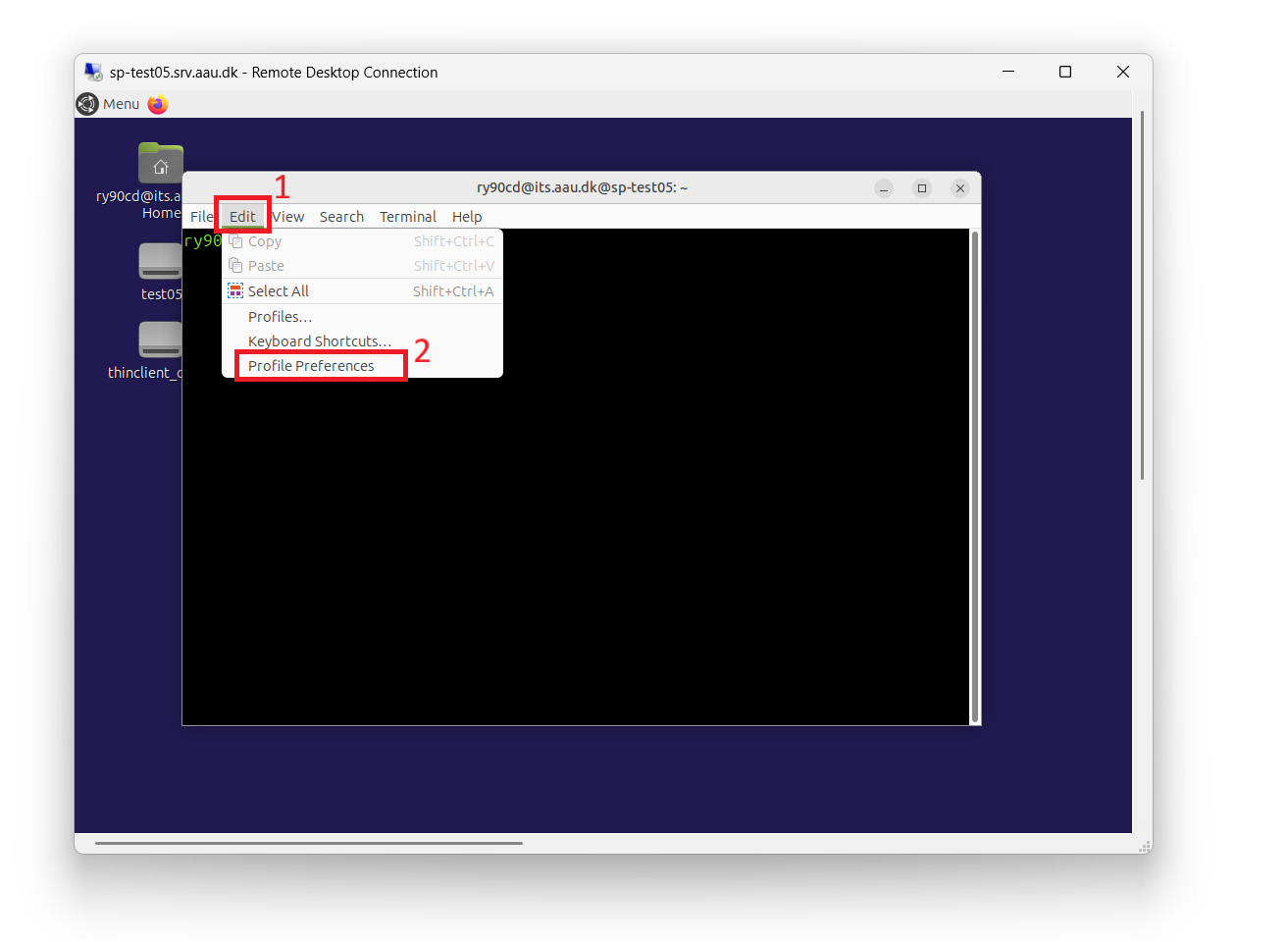
- Go to Edit → Profile Preferences.
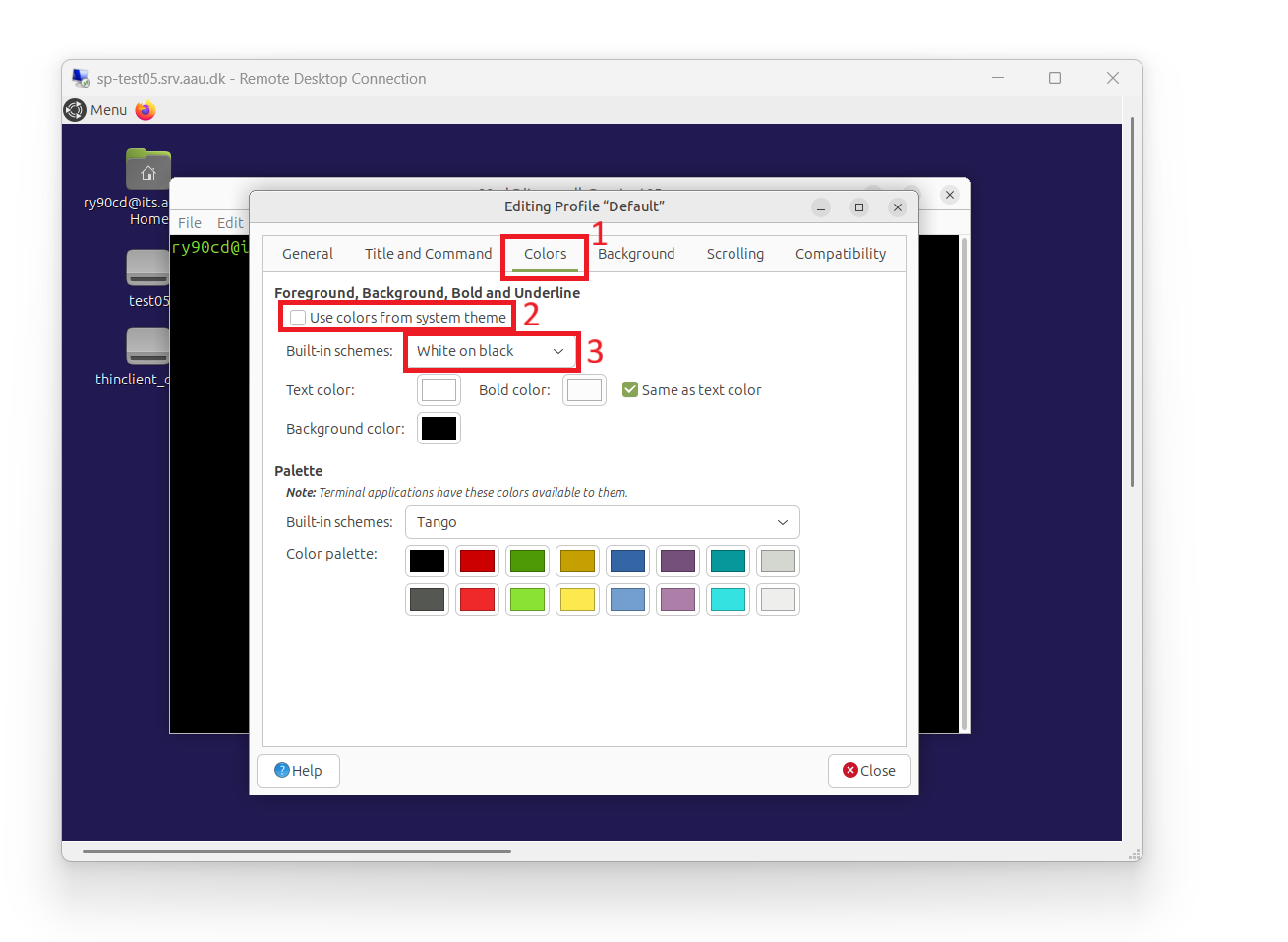
- Open the Colors tab and uncheck Use colors from system theme.
- Select a dark built‑in scheme (e.g., "White on black"), then close the dialog.
Step 2: Navigate to your project work directory
Change to your project's work folder. Replace project with your actual project name:
cd /media/project/work
Step 3: Create a virtual environment
Create a new virtual environment (you can choose any name; myenv is used here):
python3 -m venv myenv
Step 4: Activate the virtual environment
Activate the environment before installing packages:
source myenv/bin/activate
Your prompt will change to show (myenv) when the environment is active.
Step 5: Install packages with pip
Install the packages you need. For example:
pip install numpy pandas transformers
You can install any combination of packages available on PyPI. TAAURUS uses a mirrored PyPI, so most common packages can be installed without additional configuration.
Step 6: Deactivate when finished
When you are done working, deactivate the virtual environment:
deactivate