
UCloud datacenter migration
UCloud is moving to a new datacenter at SDU in Sønderborg. This improves capacity and service, but it also means some changes for you depending on where your data and projects are stored.
In short: If your data is in SDU/K8s, you don't need to do anything—it will be moved automatically. If your data is in AAU/K8s or on AAU/VM virtual machines, you must transfer it yourself before the deadline, or it will be lost.
For technical details on the new hardware and machine types, see the official SDU migration guide.
Timeline — What you need to know
| When | What happens |
|---|---|
| Before April 27 8:00 am, 2026 | If you have data in AAU/K8s or AAU/VM, you must finish transferring it to SDU/K8s by this time. After this, any data left behind will be permanently deleted. |
| ** From April to 27 May 4** | Downtime for all UCloud services. You will not be able to access the platform during this time. |
| May 4, 2026 | The new datacenter is up and running. UCloud is back online with your migrated data. |
Important deadline
If you use AAU/K8s or AAU/VM, April 27, 2026 is the last day to transfer your data. After that, it cannot be recovered. Transferring large amounts of data can take time—start early to avoid problems.
Do I need to do anything?
Yes. All users with research projects must apply for resources in the new SDU datacenter.
We have updated the application form to include the new resource types. In the form, select Existing project, enter your DeiC project number, and apply for the following:
- Storage:
u1-cephfs - CPU machine type:
cpu-amd-zen5 - GPU machine type:
gpu-nvidia-b200
You can already apply for these resources now to make sure you can continue working after the new datacenter goes live. When submitting the application, set the start date to May 1.
To secure your data, the actions you need to take depend on which provider stores your files and project resources. In the next sections, you can read more about the required actions for each provider.
If your data is in SDU/K8s — Data will be automatic migrated
Your data will be moved automatically during the downtime. Once UCloud is back online your data will be available directely.
If your data is in AAU/K8s — You must transfer it
AAU/K8s is being decommissioned. You therefor need to move your files and folders to SDU/K8s before April 27, 2026. The easiest way is to use the Transfer to option in the UCloud file browser.
Follow these steps:
- In the UCloud file browser, go to the AAU/K8s drive that contains the data you want to move.
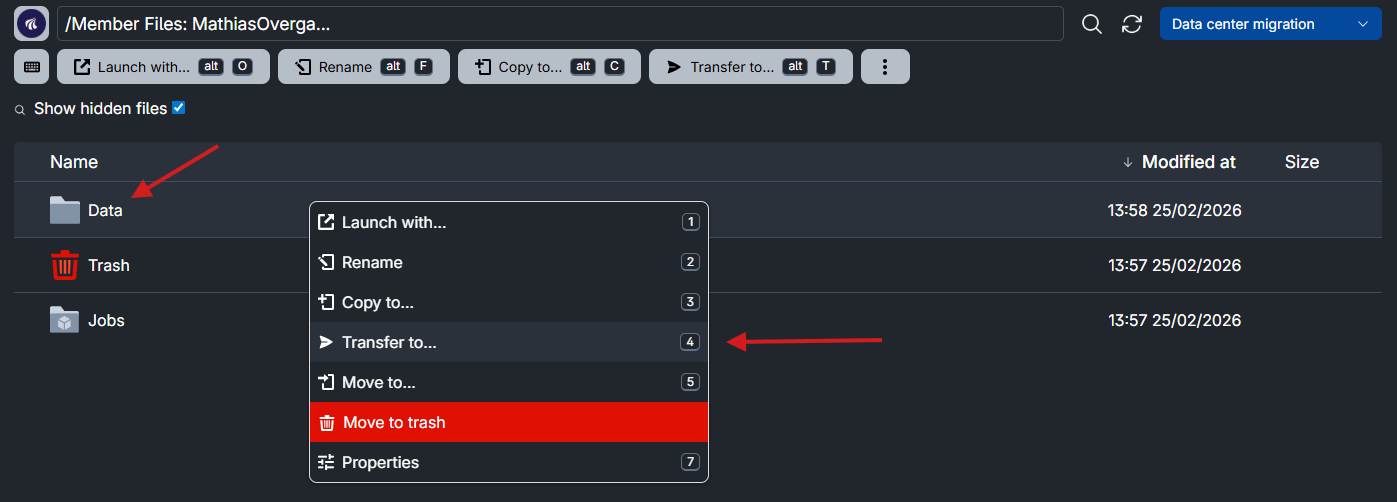
- Right-click the folder or file you want to transfer (for example, a folder called
Data). -
In the menu that appears, click Transfer to….
-
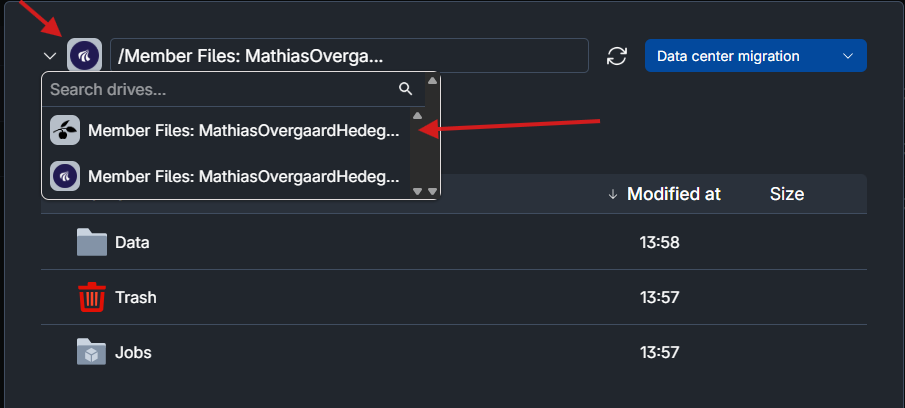
In the pop-up window, choose a destination SDU/K8s drive from the dropdown and confirm.
-
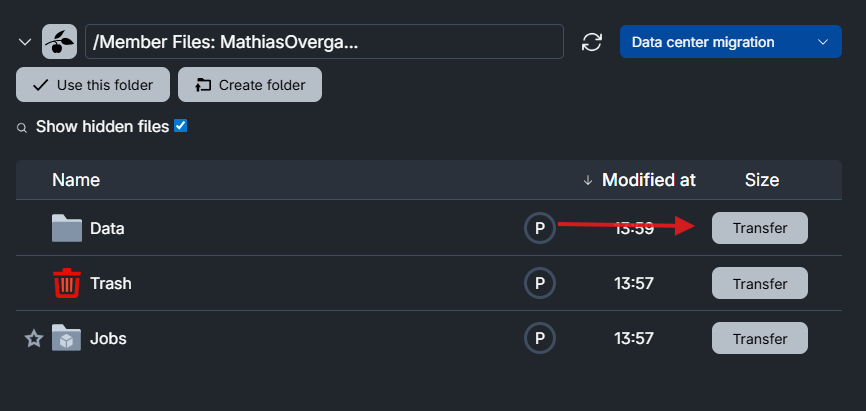
Click Transfer
-
Wait for the transfer to complete. The files will then appear on the selected SDU/K8s drive and will be included in the automatic migration to the new SDU datacenter.
For more background, see also: Transferring data from AAU/K8s to SDU/K8s.
If your data is on AAU/VM virtual machines — You must transfer it
Data stored on virtual machines from the AAU/VM provider must be transferred manually.
The example below shows one possible method to transfere your data to the SDU/K8s provider provider using scp.
-
Start a Terminal job on a machine type from the SDU/K8s provider.
-
Generate an SSH key pair using
ssh-keygen. -
Add the public (i.e.,
.pub) part of the SSH key pair (denoted as<ssh-public-key>below) to~/.ssh/authorized_keysin the virtual machine running in the AAU/VM provider:
echo "<ssh-public-key>" >> ~/.ssh/authorized_keys
An SSH public key entry will look similar to:
ssh-ed25519 AAAAC3NzaC1lZDI1NTE5AAAAIGEbkxGSnas+sYoeU98eTxNeY/Mi3DdxFiTAq5ZQ6zOy ucloud@j-7845583-job-0
-
Use
scpfrom inside the Terminal job (runnuing on SDU/K8s) using the private part of the SSH key pair (denoted as<ssh-private-key>below): -
To copy a single file:
scp -i /home/ucloud/.ssh/<ssh-private-key> ucloud@<VM-IP>:/home/ubuntu/data-file.txt .Here,
<VM-IP>must be replaced with the IP address of the virtual machine which can be found on the VM job's progress page.This command copies
data-file.txtfrom the VM to the current working directory inside the Terminal job. -
To copy a directory with all its contents, use the
-roption:scp -i /home/ucloud/.ssh/<your_ssh_key> -r ucloud@<VM-IP>:/home/ubuntu/directory .
After copying, move the data into an SDU/K8s drive so it becomes part of your project storage and is included in the automatic migration.
Important keypoint
- Clean up first — Delete files you no longer need. This speeds up the transfer and saves storage space.
- Check your storage — Make sure your SDU/K8s project has enough space for the data you're moving. If not, you may need to request more though the ucloud application form.
- Start early — Large transfers can take a long time. Don't wait until the last minute.
For more information, see preparation before migration in the SDU guide.