
Before you run GPU jobs
TAURUS has a high‑performance GPU cluster for machine learning, AI training, and graphics workloads. It consists of two compute nodes, each with 8 NVIDIA L40S GPUs. You access the cluster from the TAURUS desktop using a terminal, where you submit jobs and check their status. Jobs are queued and run by Slurm (the system that schedules and manages resources). For consistent and reproducible software environments, workloads can run inside Singularity containers.
Open the terminal
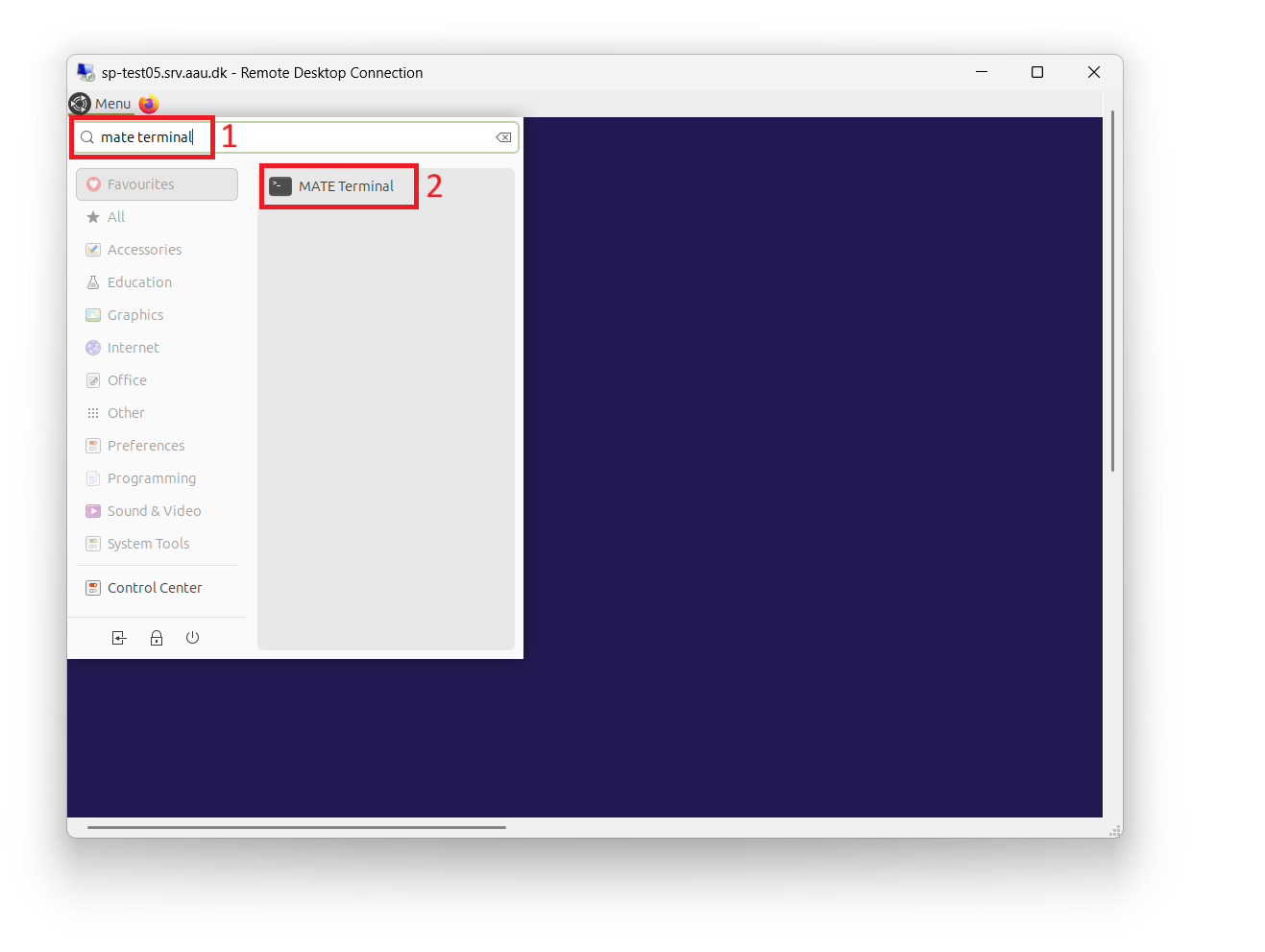
Go to Menu in the top left corner, search for mate terminal, and click the application to start it.
Improve terminal readability
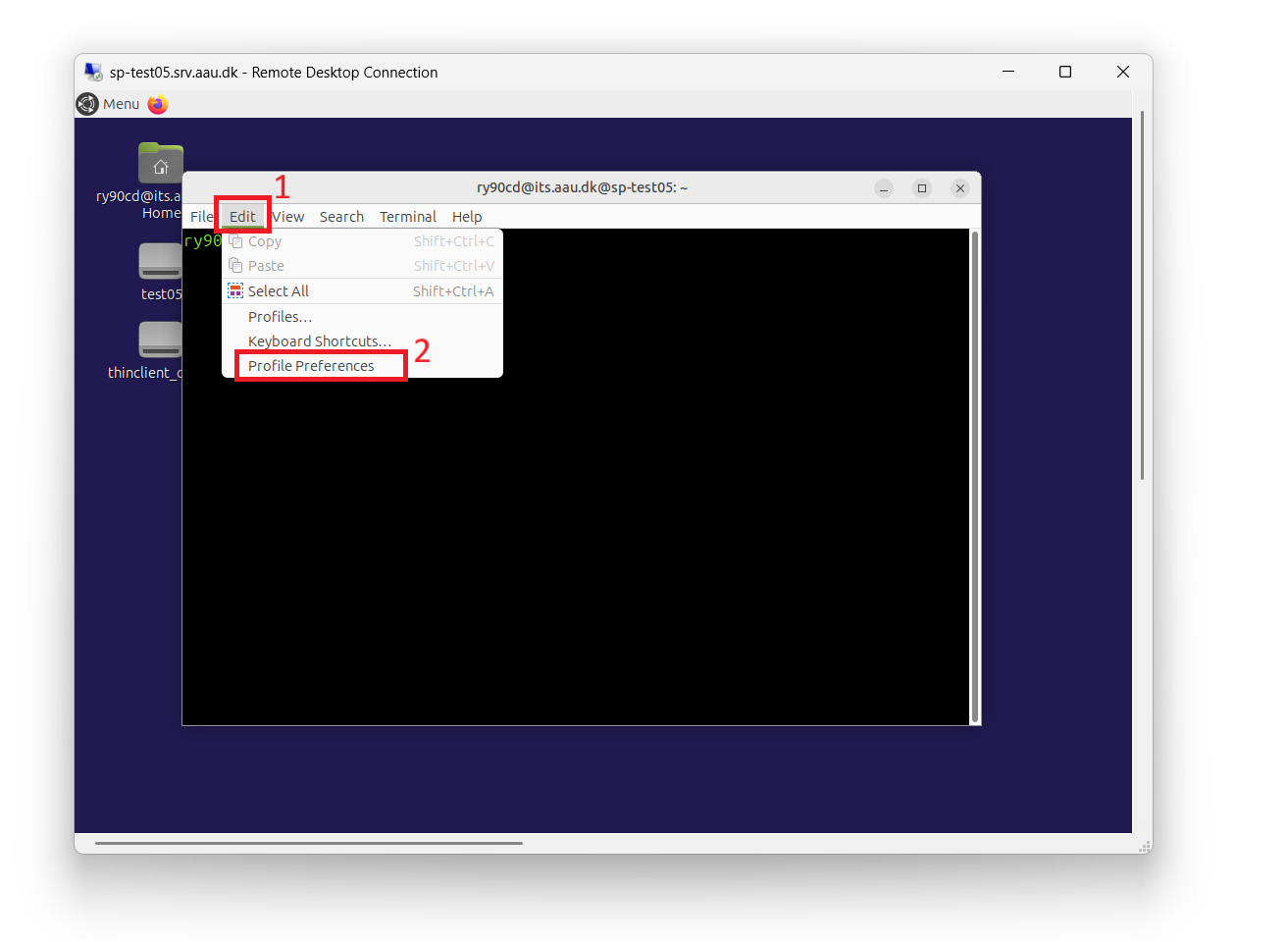
The default terminal theme can be low contrast. To switch to a darker, higher‑contrast scheme:
- Go to Edit → Profile Preferences.
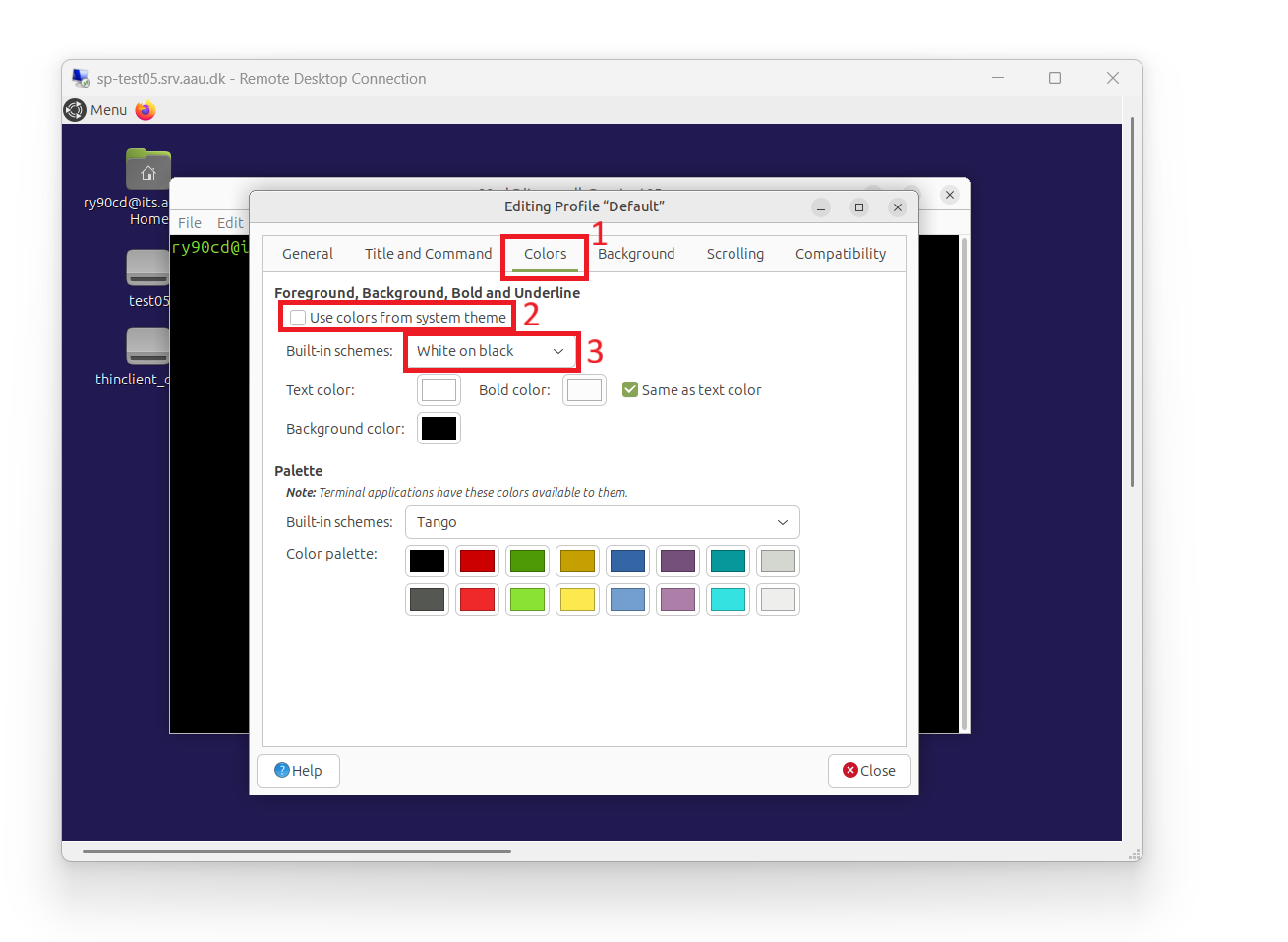
- Open the Colors tab and uncheck Use colors from system theme.
- Select a dark built‑in scheme (e.g., "White on black"), then close the dialog.
Nice-to-know Linux commands
Don’t worry if you’re new to Linux—these essentials will get you started.
Navigation
| Command | Description | Example |
|---|---|---|
pwd |
Show current directory | pwd |
ls |
List files and folders | ls -la (detailed list) |
cd |
Change directory | cd /media/project |
Files and folders
| Command | Description | Example |
|---|---|---|
mkdir |
Create directory | mkdir my_project |
rm |
Remove file | rm old_file.txt |
rm -r |
Remove directory | rm -r old_folder |
cp |
Copy file | cp file.txt backup/ |
cp -r |
Copy directory | cp -r project/ backup/ |
mv |
Move/rename | mv old_name.txt new_name.txt |
cat |
Display file content | cat script.py |
Quick editing with nano
nano my_script.py # Create or edit a file
Shortcuts:
- Save:
Ctrl + O, thenEnter - Exit:
Ctrl + X - Cut line:
Ctrl + K - Paste:
Ctrl + U - Search:
Ctrl + W - Help:
Ctrl + G
Know your directories
Personal user directory
When you open the terminal, you start in your personal home directory (e.g., /home/domain.aau.dk/user). You can use this location for private or temporary files, but be aware that it is not backed up and does not provide access to the GPU cluster.
Shared project directory
To work with project data and use the GPU cluster, switch to your project directory under /media. In the examples below, the project is named project—replace this with your actual project name.
What is my project directory called?
Show available projects with:
ls /media
Change to your project directory:
cd /media/project
Inside your project directory you will find three pre‑made folders:
/media/project/data– store datasets and large inputs/media/project/work– keep scripts, notebooks, and code here/media/project/export– place files here that you plan to export out
Next steps
When ready, continue to: Running Jobs