
Resize your server
Resize your Strato server
This guide shows you how to change the size of your Strato server to a smaller or larger flavor (vCPUs and GPUs).
1. Log in to the Strato portal
- Open your browser and go to the Strato portal.
- Log in with your Strato username and password.
2. Go to the correct project
- In the top bar navigation, locate and select the project that the server belongs to.
Strato servers are organized by project, so you must be in the correct project to see the relevant servers.
3. Open the server overview
- In the main navigation, go to the Compute section and open the Instances page that lists your servers.
- Find the server you want to resize in the list.
4. Open the resize/change flavor dialog
- Click the three‑dot menu on the far right of the server row.
- In the server context menu, click Resize instance.
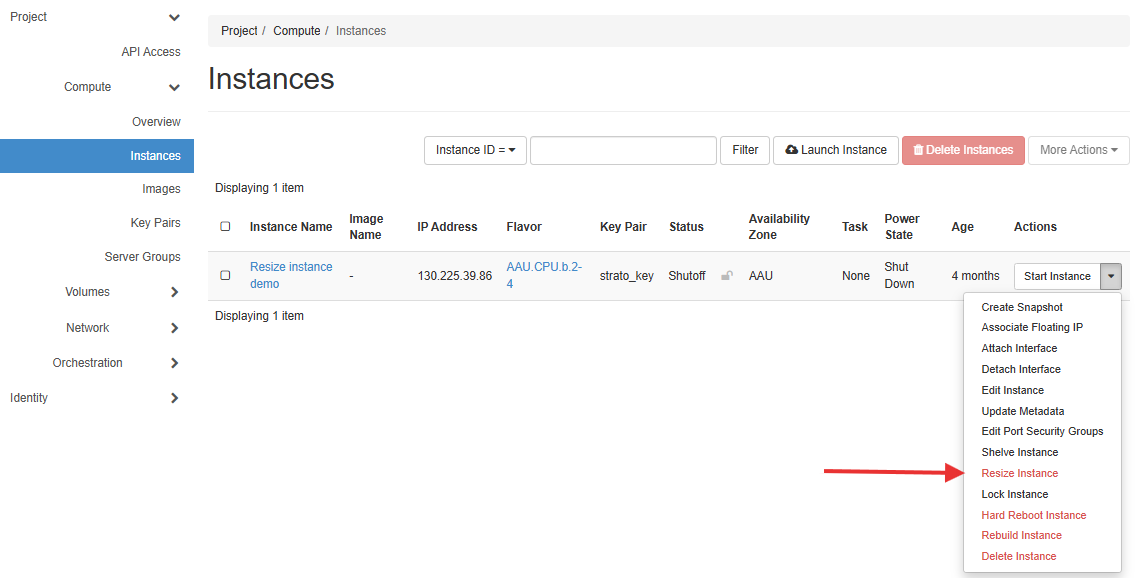
5. Choose the new size (flavor)
In the resize dialog you will see a list of available flavors (predefined combinations of vCPUs, RAM, and possibly disk and GPUs).
- Review current size:
- Note the current vCPUs, RAM, and disk so you can compare.
- Select a new flavor:
- Pick a flavor that meets your performance needs.
- Make sure it fits within your quota and budget limits.
Tip: Before resizing your server, make sure your project has a high enough quota for the new flavor (vCPUs, RAM, GPU). If not, you may need to request a quota increase through the Strato application form.
6. Confirm the resize operation
- After selecting the new flavor, click Resize.
- The dialog window will close.
- Back on the server page, in the upper‑right corner, click Confirm Resize/Migrate to apply the change.
7. Wait for the operation to complete
The server status will change while Strato applies the new size.
- Wait until the status returns to Running/Active.
- The time required depends on the size change and backend load.
8. Verify the new size
After the resize is complete:
- Check the server detail page:
- Confirm the vCPUs, RAM, and (if relevant) GPUs now match the selected flavor.
- (Optional) Log in to the server:
- On Linux, check resources with
lscpuandfree -h. - On Windows, use Task Manager or System Information.